General
What is an API key?
An API key is a unique secret token that lets external tools and AI assistants access your LoopCV account on your behalf. Think of it as a password specifically made for apps - not for humans to type in, but for software to use when communicating with LoopCV.
What is MCP (Model Context Protocol)?
MCP is an open standard created by Anthropic that allows AI assistants like Claude to connect to external tools and data sources. Instead of copy-pasting information back and forth, the AI can directly read your job matches, loops, and profile data from LoopCV in real time, while you chat with it.
Is this feature free?
Yes. Generating and using an API key is available to all LoopCV users regardless of plan.
Getting Your API Key
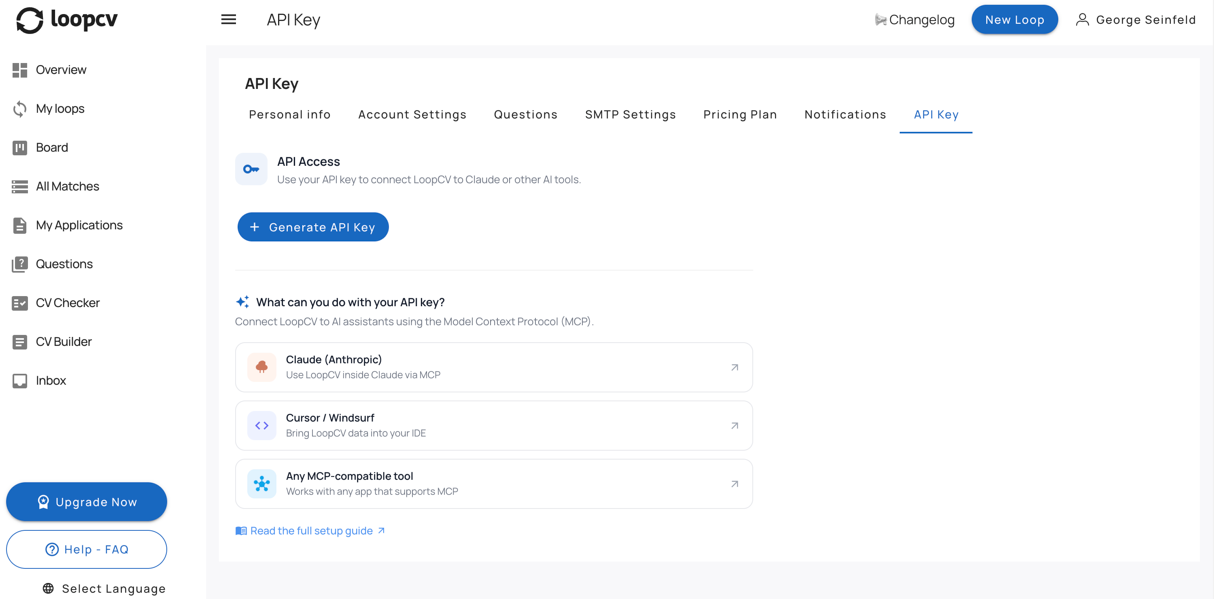
How do I generate an API key?
Go to Settings → API Key
Click Generate API Key
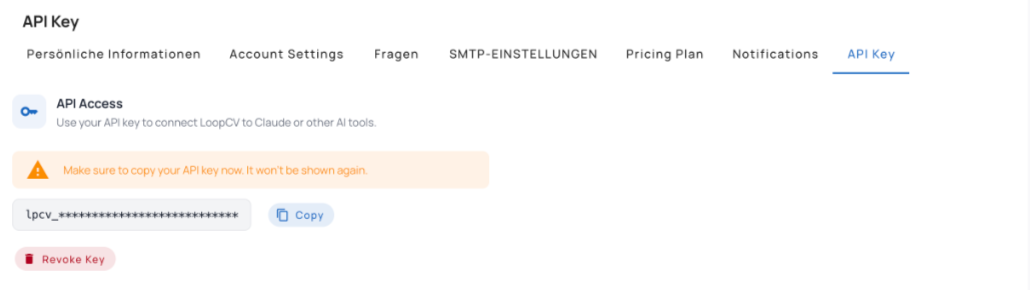
Your key will appear once - copy it immediately and store it somewhere safe (e.g. a password manager)
The key will not be shown again after you leave the page
Can I see my full key again after closing the page?
No. For security reasons, LoopCV only shows the full key once - right after it is generated. After that, only a masked version (e.g. lpcv_••••••••••••••••abc123) is displayed. If you lose your key, you will need to revoke it and generate a new one.
Can I have more than one API key?
Currently each account supports one active API key at a time. If you need to rotate your key, revoke the existing one and generate a new one.
Using Your Key with Claude (Anthropic)
What can I do with LoopCV inside Claude?
Once connected, you can ask Claude things like:
"Show me my latest job matches"
"Which of my loops is currently active?"
"Summarize the job description for my most recent match at Google"
"Draft a cover letter for my latest match"
"Create a loop for a software engineer job in London"
Claude can read your LoopCV data in real time and help you take action faster.
How do I connect LoopCV to Claude Desktop?
Open Claude Desktop and go to Settings → Developer → MCP Servers
Add a new MCP server with the following config:
{
"mcpServers": {
"loopcv": {
"command": "npx",
"args": ["-y", "@loopcv/mcp"],
"env": {
"LOOPCV_API_KEY": "your_api_key_here"
}
}
}
}
Replace your_api_key_here with the key you copied from Settings
Restart Claude Desktop
You should now see a LoopCV icon in the Claude chat toolbar
Does it work with Claude.ai (the web app)?
MCP server connections currently require Claude Desktop (the downloadable app). The web version at claude.ai does not yet support MCP integrations.
Which version of Claude Desktop do I need?
Claude Desktop version 0.7.0 or later. You can check your version in Claude Desktop → About.
Using Your Key with Cursor or Windsurf
How do I connect LoopCV to Cursor?
In Cursor, open Settings → Features → MCP
Click Add new MCP server
Enter the server name loopcv and the same JSON config shown above
Save and reload the window
How do I connect LoopCV to Windsurf?
Open Windsurf Settings → Cascade → MCP Servers
Click Add server and paste the same config
Restart Windsurf
Once connected, you can reference your LoopCV data directly in your coding assistant's chat.
Security
Is my data safe if I share my API key?
Treat your API key like a password. Anyone who has your API key can access your LoopCV account data. Never share it publicly, commit it to a GitHub repository, or paste it in a chat.
What should I do if my key is compromised?
Go to Settings → API Key and click Revoke Key immediately. Then generate a new one and update it in any tools that were using the old key.
What can the API key access?
The key grants read access to your job matches, loops, and profile data. It does not allow changing your password, billing information, or account email.
Does revoking my key disconnect my AI tools immediately?
Yes. The moment you revoke a key, any tool using it will lose access. You will need to generate a new key and update the configuration in each tool.
Troubleshooting
Claude says it can't connect to LoopCV. What do I do?
Double-check that you copied the full API key with no extra spaces
Make sure you restarted Claude Desktop after saving the config
Verify the JSON config is valid (no missing commas or brackets)
Try revoking and regenerating your key
My key stopped working after a few days.
Keys do not expire automatically. If your key stopped working, it was likely revoked - either by you or by an admin. Go to Settings → API Key to check and generate a new one if needed.
I'm getting a "401 Unauthorized" error.
This means the key being sent is invalid or has been revoked. Generate a fresh key and update it in your tool's configuration.
Need more help?
If you run into an issue not covered here, reach out to our support team at support@loopcv.com or open a chat from the bottom-right corner of the app.
Was this article helpful?
That’s Great!
Thank you for your feedback
Sorry! We couldn't be helpful
Thank you for your feedback
Feedback sent
We appreciate your effort and will try to fix the article