1. Introduction
1.1 What is a Loop
LoopCV is a job search automation platform designed to help you discover relevant job opportunities, apply efficiently, and stay organized throughout your job search.
At the core of LoopCV is the concept of a Loop. A Loop is an automated job search cycle that continuously looks for new job postings based on your criteria, evaluates them against your profile, and applies according to your settings.
This Knowledge Base explains how LoopCV works, how to use its features effectively, and how to manage your account.
1.2 How can I create a Loop?
Creating a Loop is done through a guided process inside the platform.
You will complete four steps:
Search Info
Email Template
Settings
Review
Each step influences how your Loop searches for jobs, how it applies, and how employers receive your applications.
Below is a detailed explanation of each step.
STEP 1: Search Info
In this step, you define what kind of jobs you are looking for and where they should come from. These settings determine which job postings your Loop will collect and evaluate.
1. Job Title

Enter the title of the role you are targeting (for example: "Software Engineer", "Project Manager", "Sales Executive").
Choose a clear title so the system can match it accurately with job postings.
2. Job Location

Specify where you want the job to be located.
Accepted formats include:
City, Country (e.g., "Paris, France")
Country only (e.g., "France")
This field will be used unless you activate the global remote search described below.
3. Remote-Only Search

Enable this option if you want to collect remote roles that are connected to your selected location.
A typical use case is wanting remote jobs offered within a specific country.
4. Remote Anywhere in the World (Paid Feature)
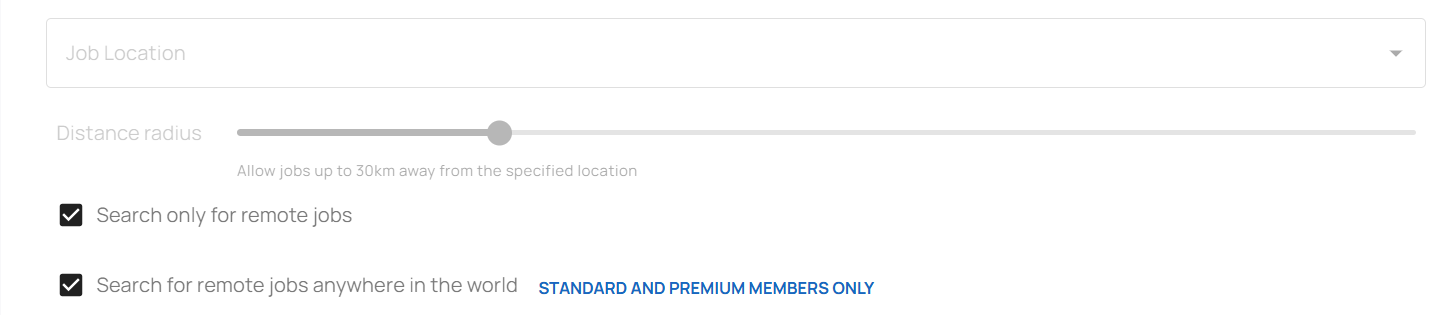
This feature is intended for users who want to search for remote jobs globally instead of limiting the search to a specific city or country.
When you enable Remote Anywhere in the World:
Leave the Job Location field empty
Check the ‘search for remote jobs anywhere in the world’ box.
This is useful for users who care more about remote flexibility than geographic restrictions.
5. Hybrid-Only Search
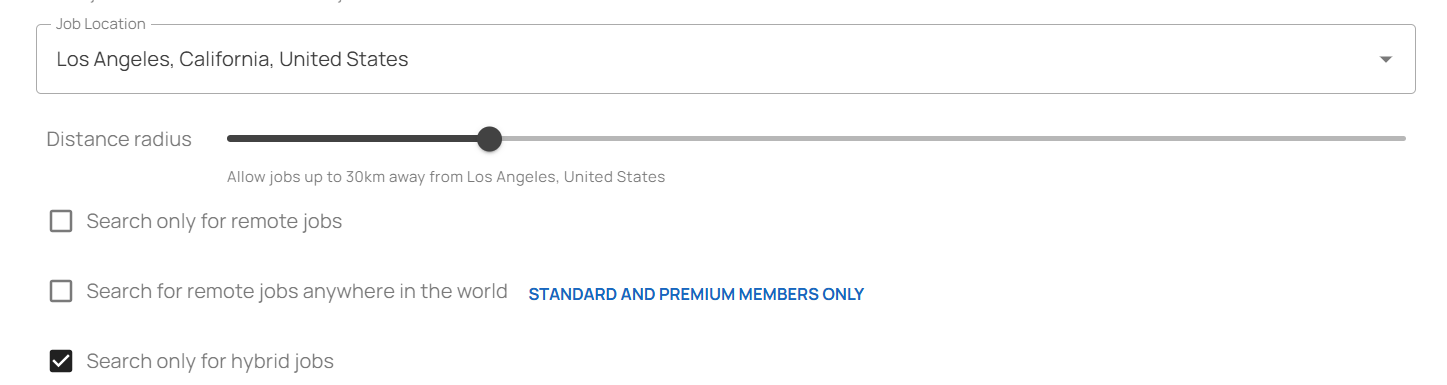
Enable this setting if you want to filter for hybrid roles (a mix of on-site and remote work) in the specified location.
This option is helpful when full remote work is not required but full on-site work is not desired.
Note: Remote-only, Remote Anywhere in the World, and Hybrid-only are exclusive modes. You should select the one that reflects your preferred working model.
6. Job Boards
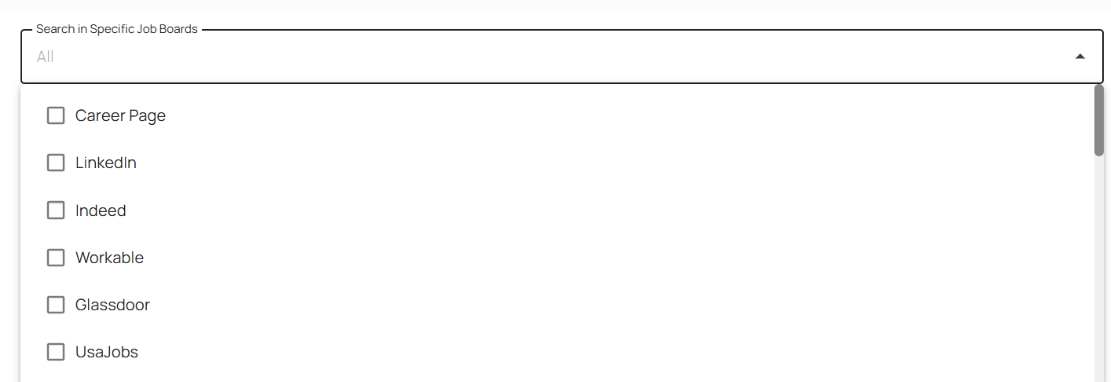
You may leave this field blank to include all supported job boards, or choose specific ones based on your preference.
Supported job boards include widely used platforms as well as region-specific sources.
Selecting job boards can help narrow the search if you already know where relevant roles are typically posted.
7. Career Page Job Search (Optional)

If enabled, the Loop will also scan company career websites for openings, not just job boards.
Many companies list roles exclusively on their own sites, so this setting can increase your total results and surface opportunities that may not appear on commercial job boards.
This option may depend on your subscription tier.
8. Experience / Seniority Level
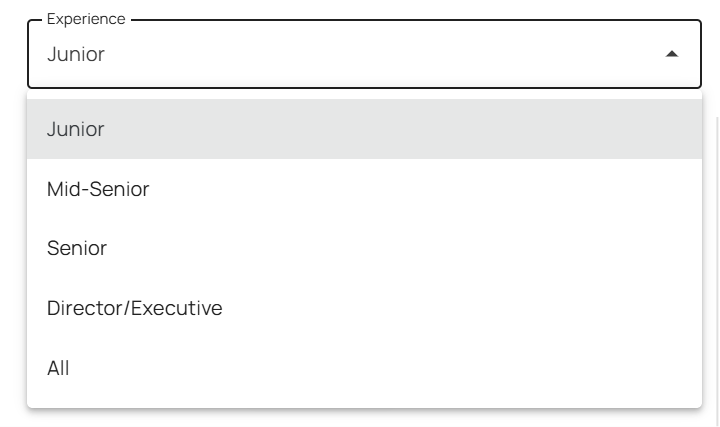
This setting defines the seniority of the roles you want to target. The available options are:
Junior
Mid-Senior
Senior
Director / Executive
All
If you are open to a range of levels, selecting "All" broadens the search but may result in a wider spread of job matches.
9. Job Type
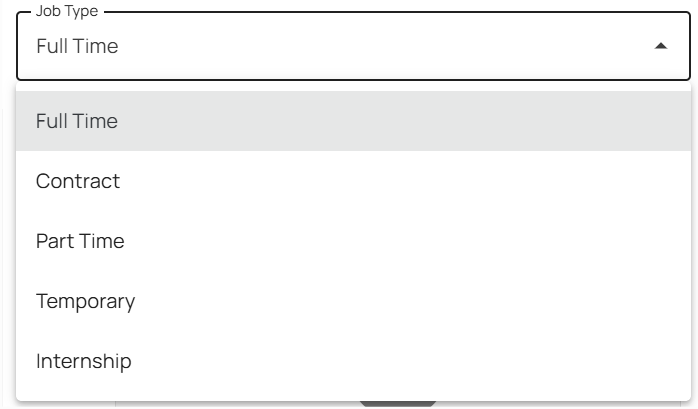
Depending on availability in your interface, you may specify:
Full-time
Part-time
Contract
Internship
Temporary
10. Upload CV
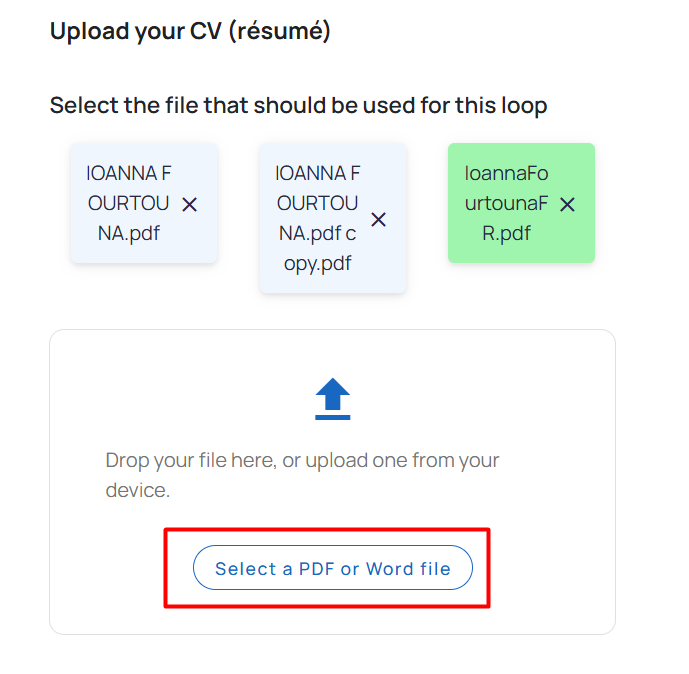
Upload your CV in PDF or DOCX format.
Your CV will be attached to applications and may be used for application form submissions and for answering screening questions (if enabled later).
11. CV Builder (Optional)
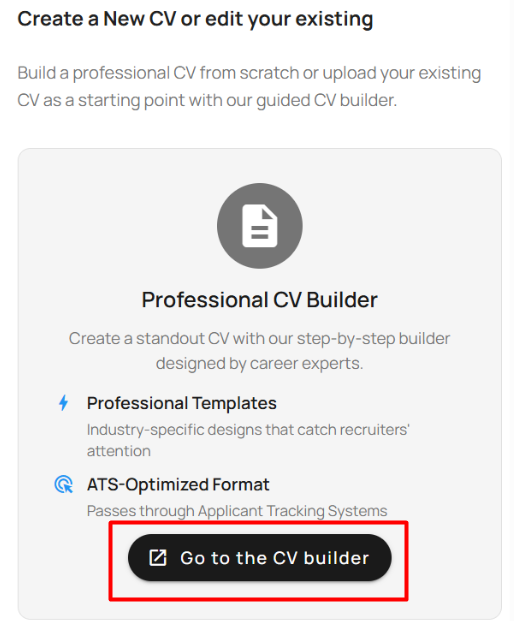
If you need to create or edit a CV, you may use the integrated CV Builder. This is optional and does not replace the upload unless explicitly saved and selected.
After all fields are completed, click "Next" to proceed to Step 2.
STEP 2: Email Template
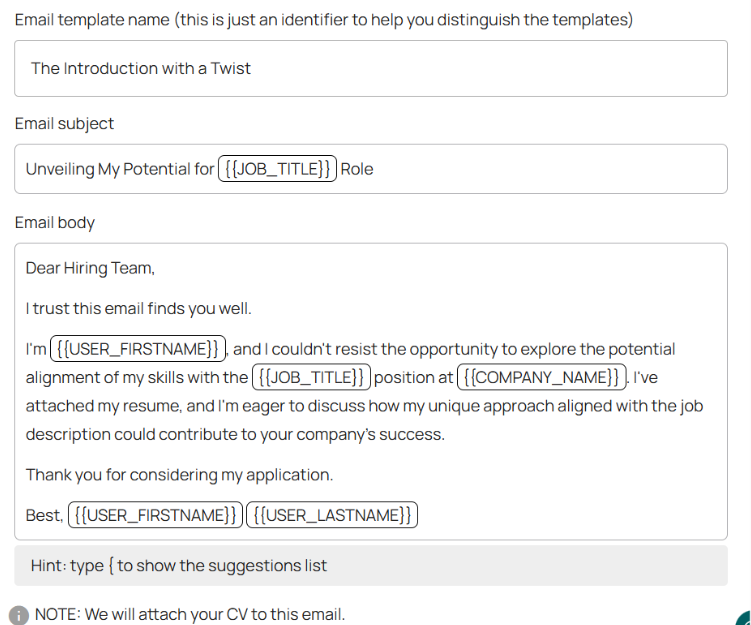
In this step, you define how your automated application emails will look when the Loop applies to jobs via email. This includes the email body, introduction, signature, and overall message style. The CV you uploaded in Step 1 will always be attached automatically.
This step involves two key actions:
Choosing or creating an email template
Sending a test email (optional but recommended)
Both actions help ensure that your outreach to employers is well-presented and consistent.
1. Select an Email Template
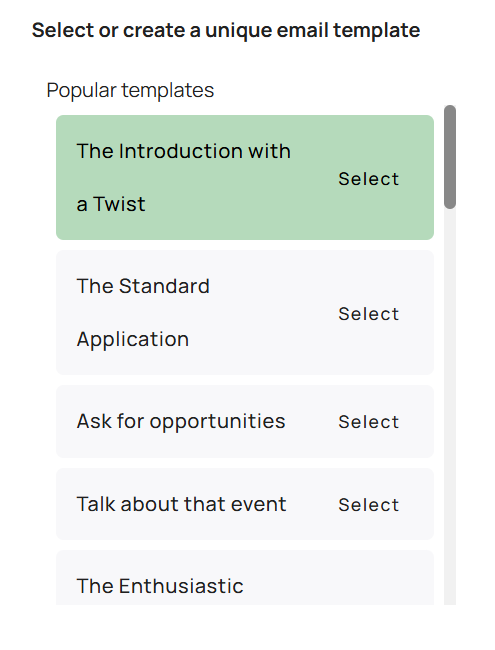
LoopCV provides you with a set of ready-made templates. You can:
Select a predefined template
Create a new custom template
Templates may include dynamic placeholders such as:
Job title
Company name (when available)
Candidate name
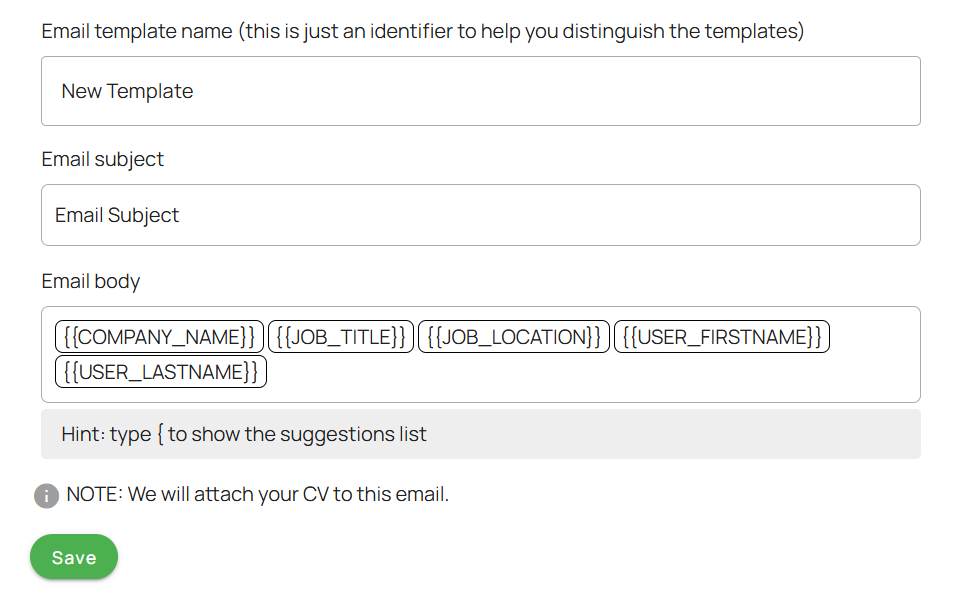
These placeholders fill automatically during the application process.
The goal of this step is to ensure that when an employer receives an automated email from you, it looks professional, clear, and relevant.
2. Send a Test Email

After selecting or customizing your template, you may choose to use the "Send test email" option. This allows you to send the template to your own email inbox to preview how it will appear to employers.
The test email helps you verify:
Wording and formatting
Contact information accuracy
Tone and style
Important Notes on Email Sending
Your CV will always be attached automatically during email-based applications.
You may proceed without creating a custom template; using a predefined template is acceptable for most users.
After confirming your email template, click "Next" to proceed to Step 3.
STEP 3: Settings
In this step, you control how the Loop applies to jobs and how closely it filters job postings. These settings determine which application methods are used, what information is included, and how strict the matching rules should be.
This step contains three main areas:
Application Automation
Personal Information Fields (for form submissions)
3. Cover Letter
4. Keyword and Match-Level Options
1. Application Automation
These options define whether the Loop applies automatically or simply collects matches for later review.
a. Automatically Send Emails

If enabled, the Loop will automatically send job applications via email whenever an employer email address is detected.
If disabled, email applications will not be sent automatically, and matched postings will simply be listed for manual review.
b. Auto-Fill Application Forms

If enabled, the Loop will automatically fill and submit job application forms on supported websites.
To use auto-fill forms, the following fields must be provided:
Phone number
City
c. AI Answering (Premium or Done-for-You feature)

When enabled, AI will assist in answering screening questions during the application process.
The AI uses information from:
Your CV
Your profile details
Previously answered questions (when applicable)
If this feature is not enabled, form submissions with required screening questions may be marked as "Pending Questions" until answered manually.
d. Auto-Apply Using Chrome Extension

Certain platforms require user authentication and cannot be applied to automatically from the tool. For these platforms, when an Easy Apply method is available, applications must be submitted using the Chrome Extension.
Supported extension platforms currently include:
LinkedIn
Indeed
Dice
Reed
StepStone
GulfTalent
When this feature is active, you will be prompted to install the extension if it is not already installed. Matches that require the extension will be labeled accordingly.
2. Additional Fields for Form Applications
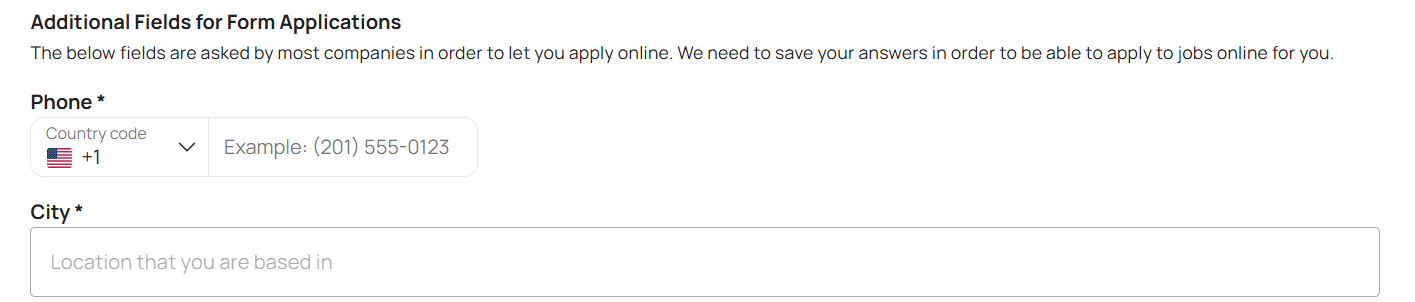
These fields are required for form submissions, as they are often mandatory on job platforms:
Phone
Required for forms that request candidate contact information.
City
Required for forms that need geographical context for the applicant.
3. Cover Letter
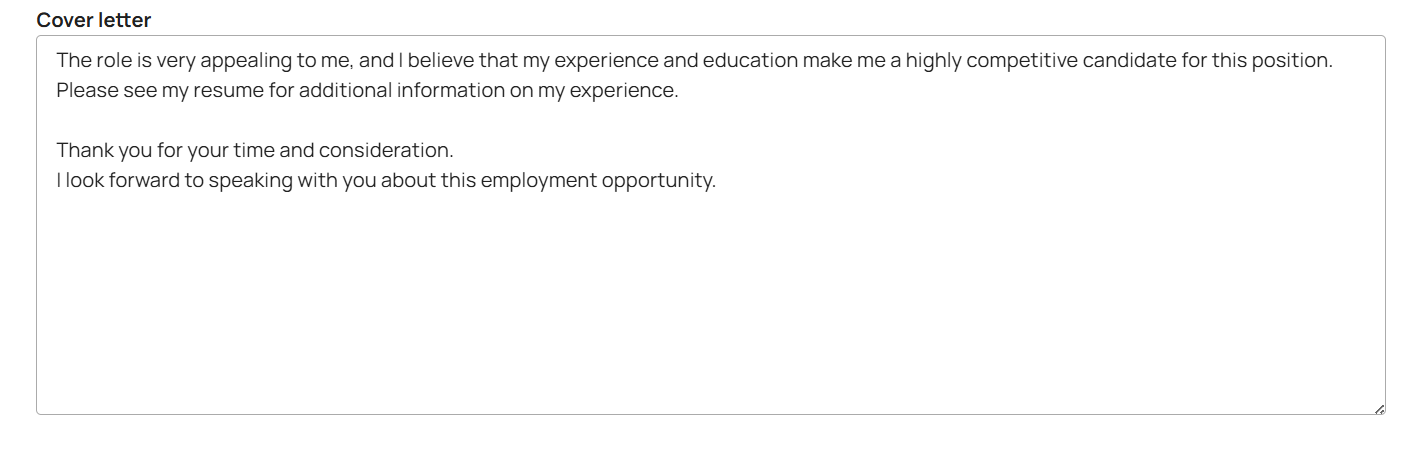
You can use the default cover letter prepared by LoopCV or write and customize your own.
4. Keyword and Matching Level Options
These settings allow you to refine the type of job postings your Loop should consider.
a. Required Keywords
These are keywords that must appear somewhere in the job posting (for example: "Python", "Salesforce", "B2B Marketing").
If a posting does not contain at least one of the required keywords, it will not be collected as a match.
Use this setting when you want to ensure that certain skills or terms are present.
b. Excluded Keywords
These are keywords that, if present in a job posting, will cause it to be excluded.
Examples include: "Internship", "Unpaid", "Senior" (if not applicable).
Use excluded keywords to remove irrelevant or undesired positions.
Important note: Each keyword has to be entered separately, as shown in the screenshot below:

c. Excluded Companies
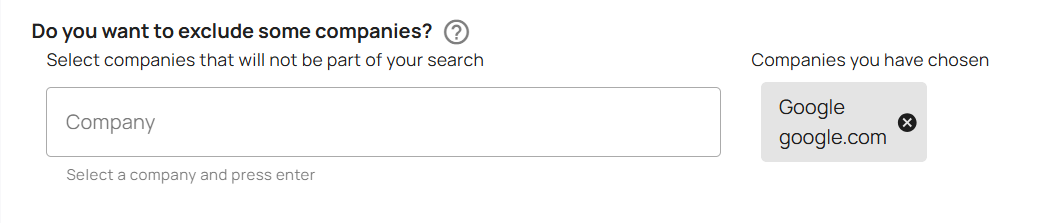
This option allows you to prevent jobs from specific companies from being matched to your Loop.
This is useful when:
You do not want to apply to a certain company
You already applied or interviewed there
You want to avoid specific employers
d. Matching Level
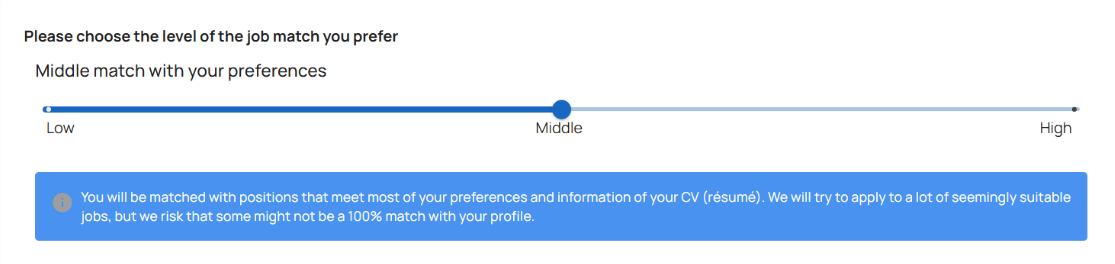
This setting defines how strict the matching should be:
Low: The system is more flexible, resulting in a higher number of matches but potentially less precision.
Middle: A balanced setting that aims for a reasonable volume and relevance.
High: The system is stricter and returns fewer, more closely related matches.
Choosing the appropriate match level depends on how broad or narrow you want your search to be. Users who are open to exploring similar job titles may benefit from a lower match level, while users who want very specific matches should use a higher match level.
After configuring these settings, click "Next" to proceed to Step 4.
STEP 4: Review
This is the final step before starting your Loop. In this step, you review all the settings you configured in the previous steps to ensure accuracy and completeness. The Review screen allows you to verify that the Loop will target the correct jobs and apply to them in the way you intend.
Starting the Loop
After reviewing these settings, click the "Start the Loop" button.
Once activated, the Loop will begin scanning job sources and collecting matches based on your configuration. You do not need to stay on the page for the Loop to operate.
What happens when I start the loop
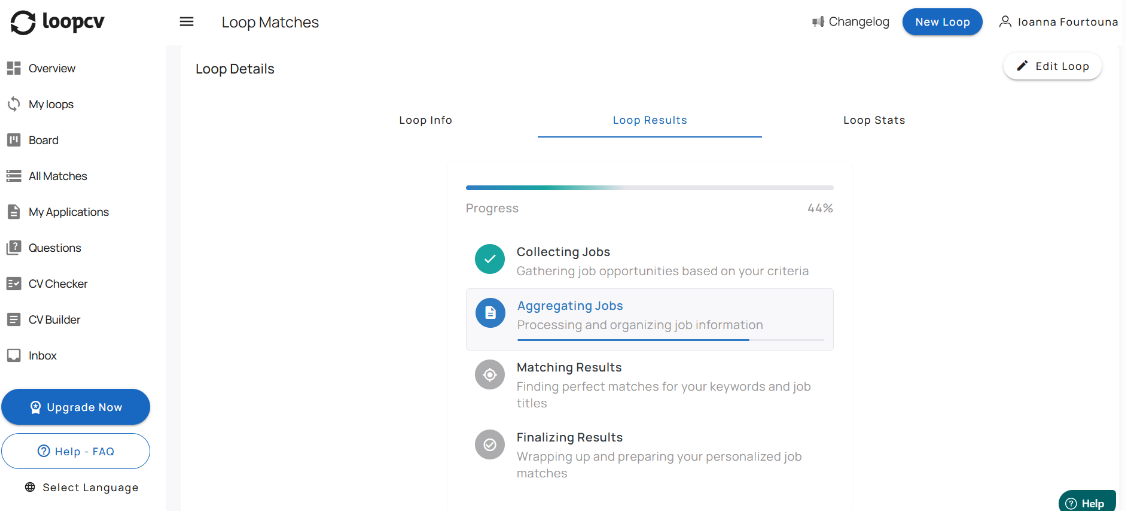
When you start a Loop, it begins running automatically and starts searching for jobs based on the criteria you selected. You do not need to keep the page or your browser open for it to continue working.
Here is what you can expect:
1. The Loop Finds Job Postings
The Loop scans supported job boards (and company career pages if enabled) and collects job postings that fit your criteria (job title, location, seniority, etc.).
2. The Loop Creates Matches
When a posting fits your criteria, it appears as a “match” in your dashboard. Matches may have different status labels depending on how they can be applied.
3. Applications Are Submitted (If Enabled)
If you enabled automation (email and/or form submissions), the Loop will apply automatically whenever possible.
If a job requires the Chrome Extension (for example on LinkedIn, Indeed, Dice, Reed, StepStone, or GulfTalent), it will wait for you to apply through the extension.
4. You Can Monitor Progress
Inside your dashboard you will see:
New matches
Submitted applications
Extension-required applications
Any postings that need your input
5. Editing or Stopping a Loop
Loops cannot be paused. However, you can:
Edit a Loop (changes apply immediately)
Delete a Loop (stops it completely)
Duplicate a Loop (useful for testing variations)
2. Application Methods
LoopCV can apply to jobs in different ways depending on the platform and the settings you enabled when creating your Loop. Not all job postings support the same method, so it is normal to see a mix of methods during your job search.
There are three automated application methods:
Automatic email applications
Automatic form applications
Extension-supported applications
Each method is explained below:
1. Automatic Email Applications
If your Loop has "Automatically send emails" enabled, LoopCV will apply to roles where an employer email address is available.
In this case:
LoopCV sends your selected email template
Your uploaded CV is attached automatically
Applications are sent directly to the employer’s inbox
2. Automatic Form Applications
If your Loop has "Auto-fill application forms" enabled, LoopCV will apply to job postings that provide form-based applications.
In this case:
LoopCV fills out required fields (e.g., name, email, phone, city)
Your CV is attached to the form where supported
Screening questions will appear in the “Questions” tab and can be answered manually or by AI, depending on the user’s plan.
3. Extension-Supported Applications
Some job boards offer an “Easy Apply” experience but require the user to be logged in. To support these cases, LoopCV provides a Chrome Extension. When the extension is installed, you can apply in bulk to matching postings directly on the platforms below:
LinkedIn
Indeed
Dice
Reed
StepStone
GulfTalent
When a job posting requires the extension, it will be labeled accordingly in your dashboard.
Manual Applications
In some cases, a job posting cannot be applied to automatically or through the Chrome Extension. When this happens, the job will require manual application by the user.
Manual applications typically occur when:
The employer’s website requires the user to create an account, or
A login is required to access the application form, and
LoopCV is not authorized to create accounts or log in on behalf of users
In these situations, LoopCV will provide the link to the job posting so the user can complete the process directly on the employer’s site.
Which Method Will Be Used?
The application method depends on:
The job platform
The presence of an employer email
Whether a form is available
Whether the extension is required
Which automation settings you enabled
LoopCV automatically chooses the most efficient method available for each posting. Your dashboard will always show the result for each job so you know what happened or what action is needed.
3. Understanding Your Dashboard
When you log into LoopCV, your dashboard is the main workspace for managing your job search. The left sidebar organizes the platform into tabs that represent different parts of your workflow - from running Loops to managing matches, CVs, and application-related activity.
This section provides a brief overview of each tab to help you understand where things live.
3.1 Overview
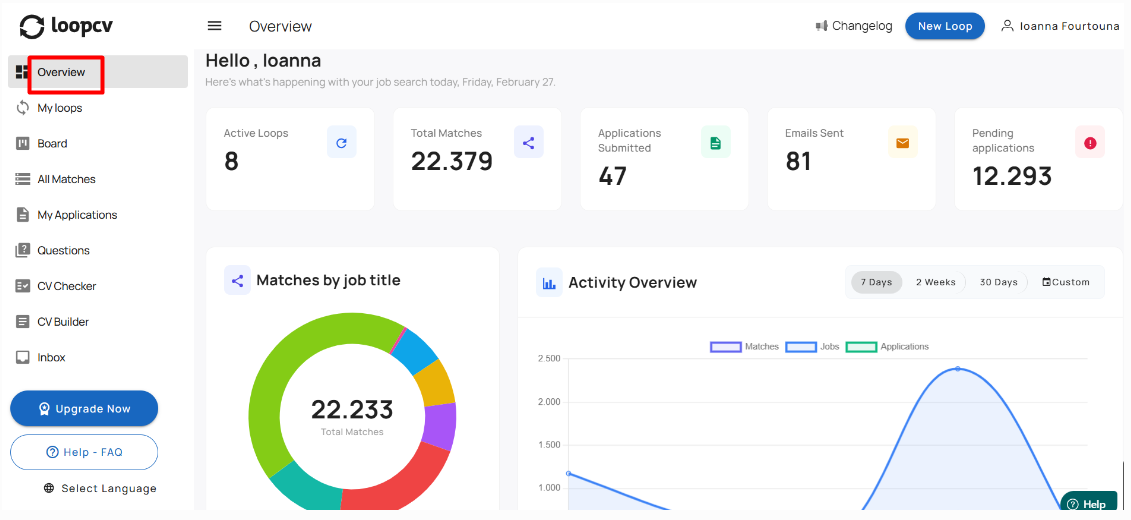
The Overview tab gives you a high-level snapshot of your recent activity. It is designed for quick monitoring rather than detailed management.
Users typically use Overview to:
check recent progress at a glance
confirm that activity is happening on the account
3.2 My Loops
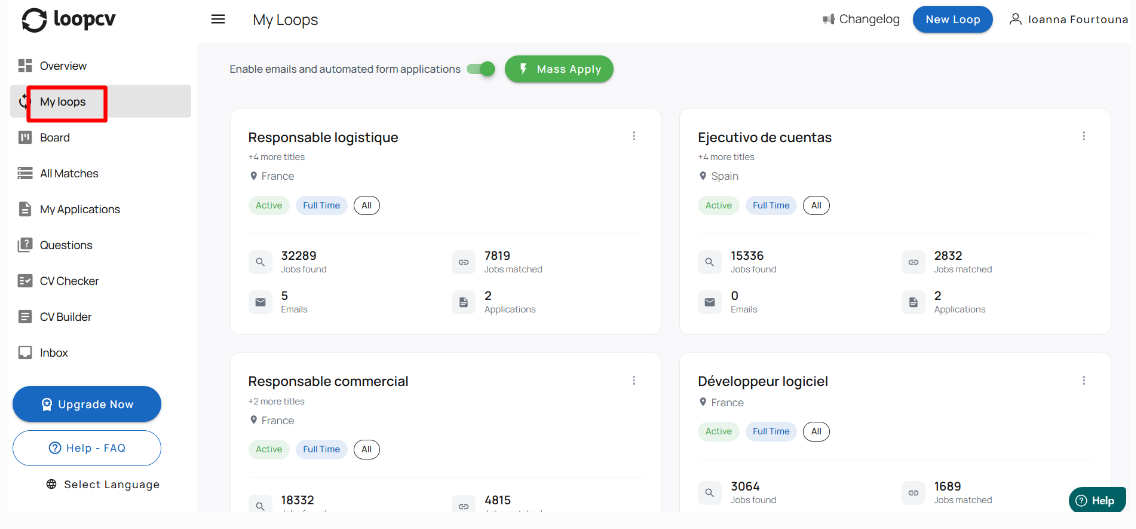
The My Loops tab is where you create and manage your automated job searches.
From here you can:
create new Loops
view existing Loops
edit Loop settings
open a Loop to review results
Each Loop represents a separate job search configuration with its own criteria and automation settings.
3.3 Board
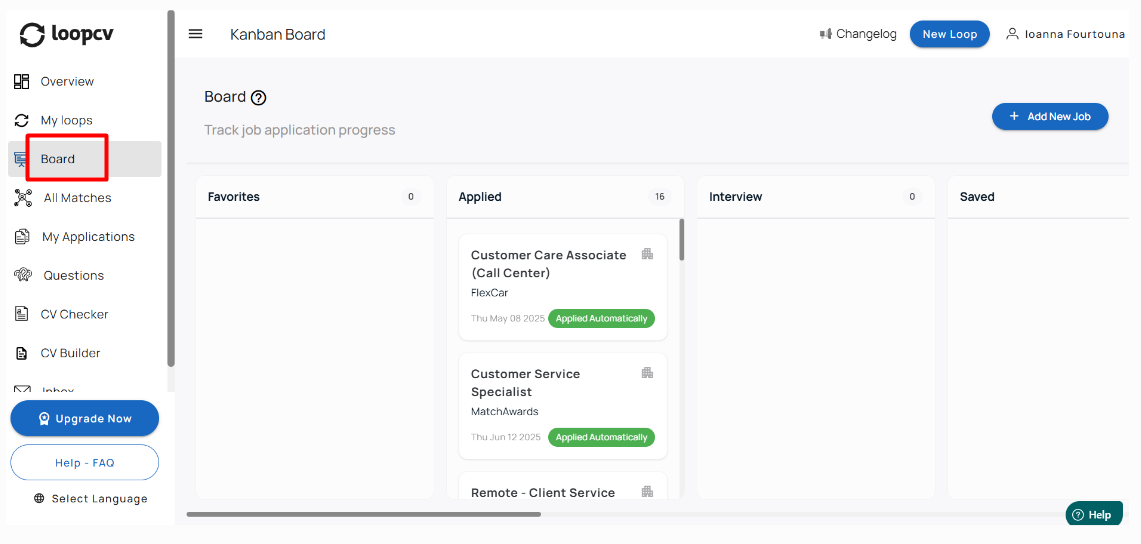
The Board tab provides a visual, pipeline-style view of your matches. It organizes jobs into stages so you can track progress in a more structured workflow format.
This view is helpful for users who prefer a board layout over a list view.
3.4 All Matches
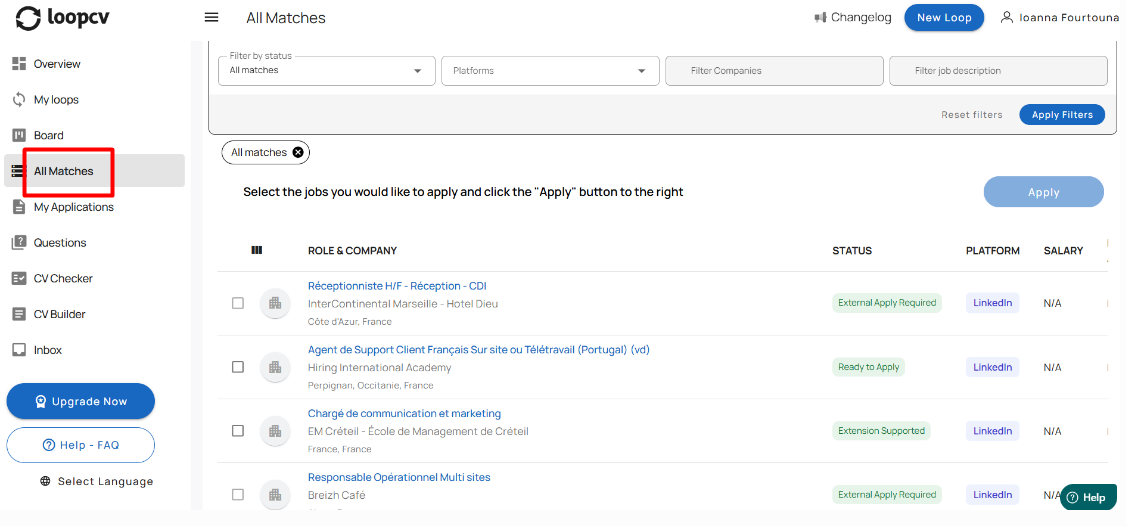
The All Matches tab shows the job postings collected by your Loops.
This is your main application pipeline. Here you can:
review collected matches
see match statuses
identify matches that require action (extension, questions, external apply)
open a job posting and take next steps
3.5 My Applications
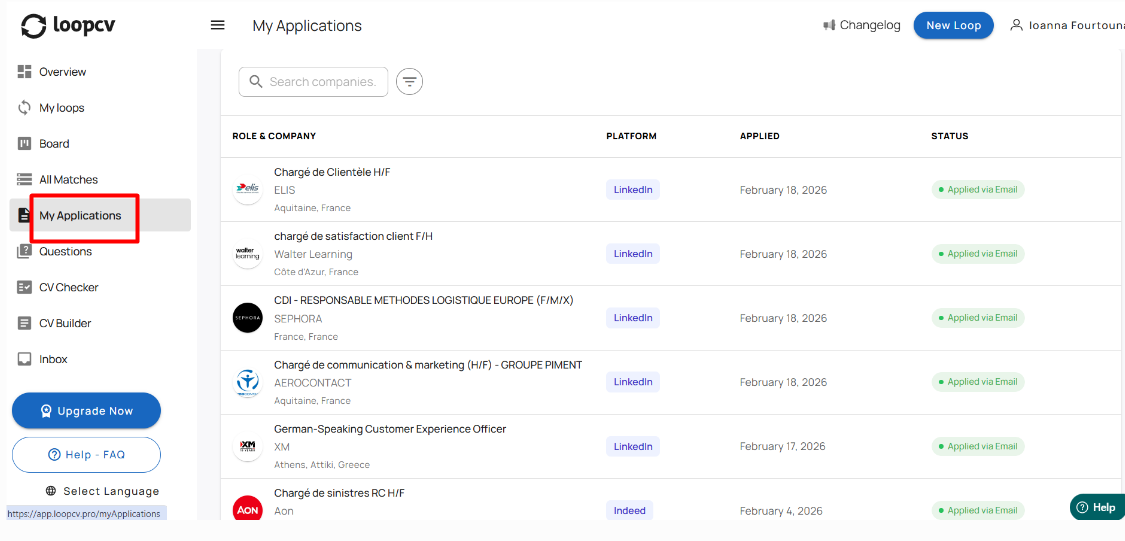
The My Applications tab shows matches that LoopCV successfully applied to automatically.
Manual applications do not appear here.
For each entry, you can typically see:
job title
company
location
date applied
submission method (form or email)
This tab is useful for reviewing your automated application history.
3.6 Questions
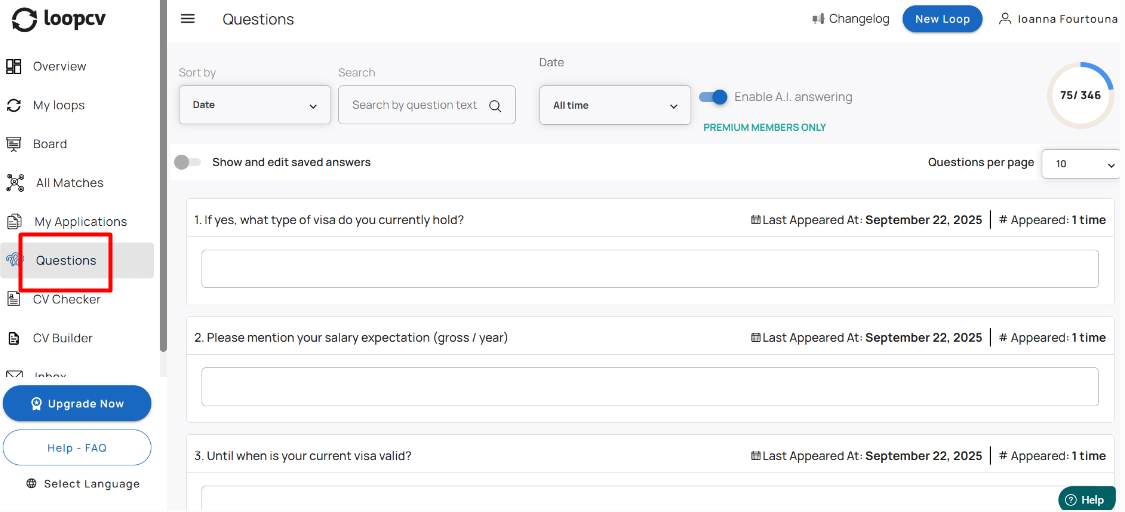
The Questions tab contains screening questions that must be answered before certain applications can be completed.
In this tab, you can:
answer new screening questions
view previously answered questions
edit saved answers for future reuse
Once required questions are answered:
automated applications can move forward automatically, or
extension-based applications can be completed during an extension run
3.7 CV Checker
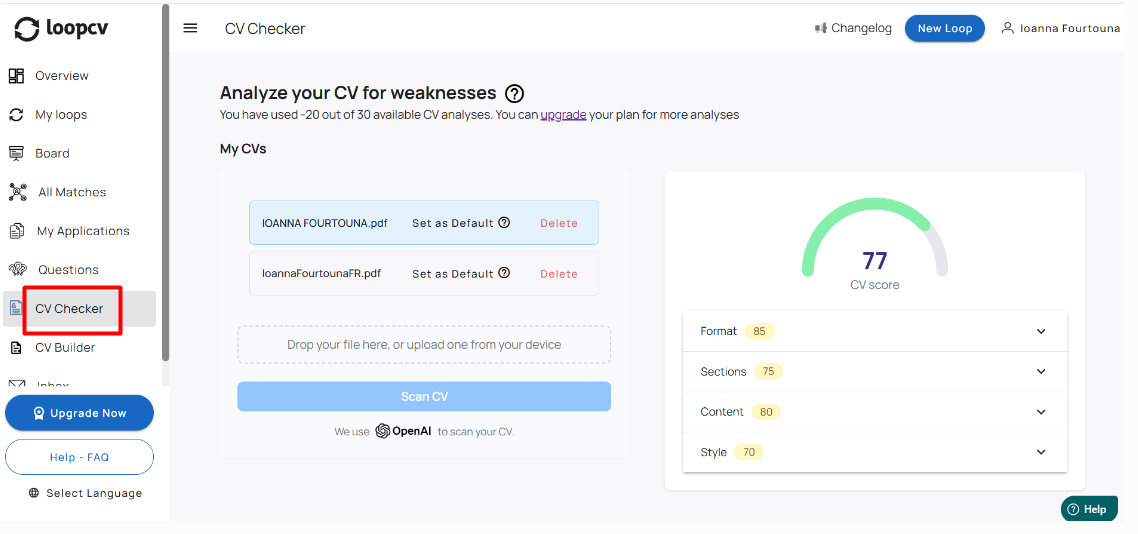
The CV Checker analyzes your CV and provides feedback to improve structure, clarity, and overall effectiveness.
It helps you identify improvements, but it does not automatically change your CV.
3.8 CV Builder
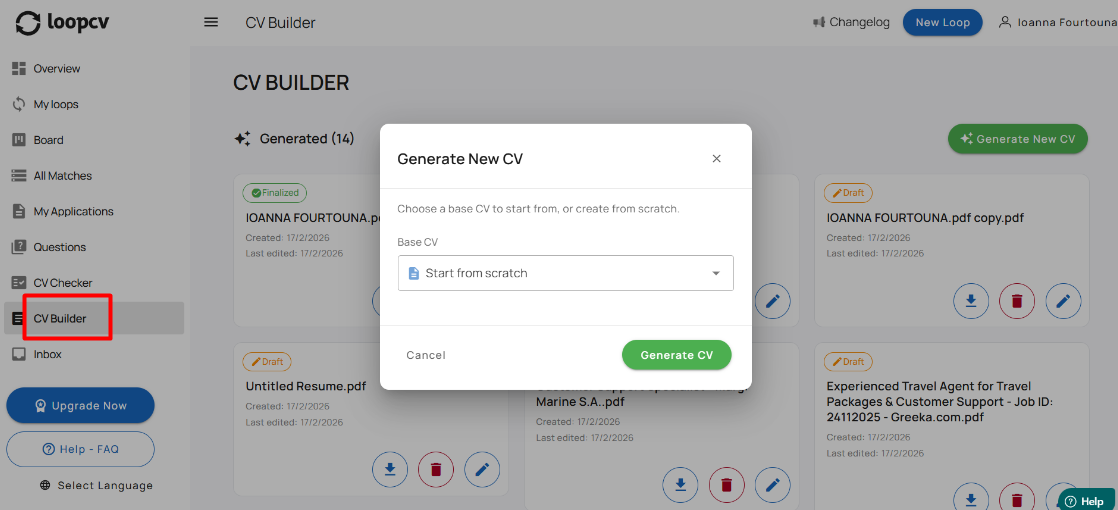
The CV Builder allows you to create and edit structured CVs directly inside LoopCV.
From here you can:
select a CV template
edit your CV using the content editor
adjust presentation in the designer
preview changes live
finalize your CV so it becomes available in your CV library and Loops
download a PDF copy to your computer
3.9 Inbox
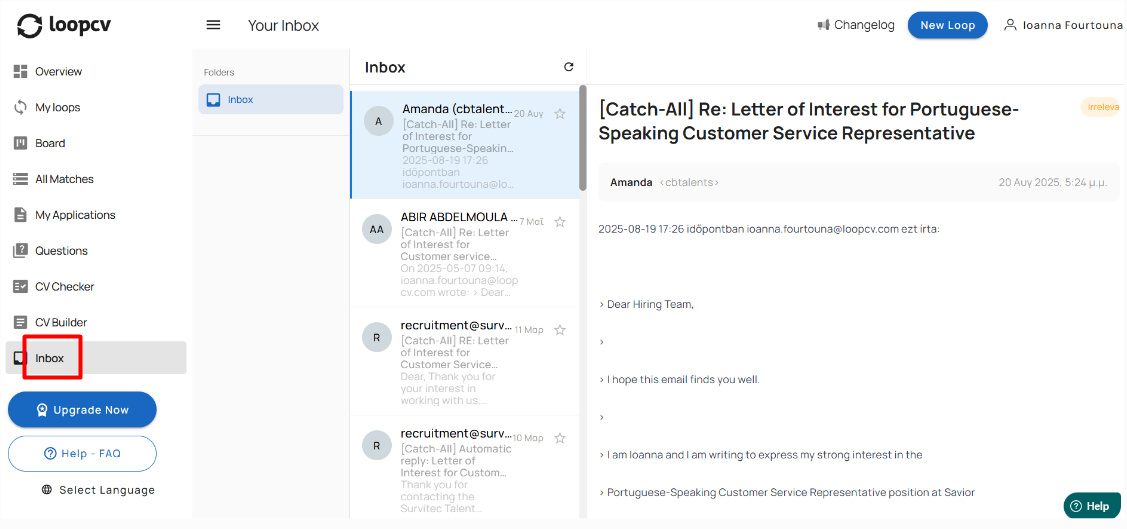
The Inbox tab allows you to view emails received from companies related to your applications.
All employer emails are delivered directly to your personal email address, and you reply from your own inbox (not inside LoopCV).
The Inbox inside LoopCV acts as a reference log so you can track communication alongside your application activity.
4. Managing Loops
After creating a loop, you can manage it from the Loops dashboard. Managing loops allows you to monitor activity and make adjustments without recreating loops from scratch.
Below are the actions available for an existing loop:
4.1 Master Auto-Apply Toggle
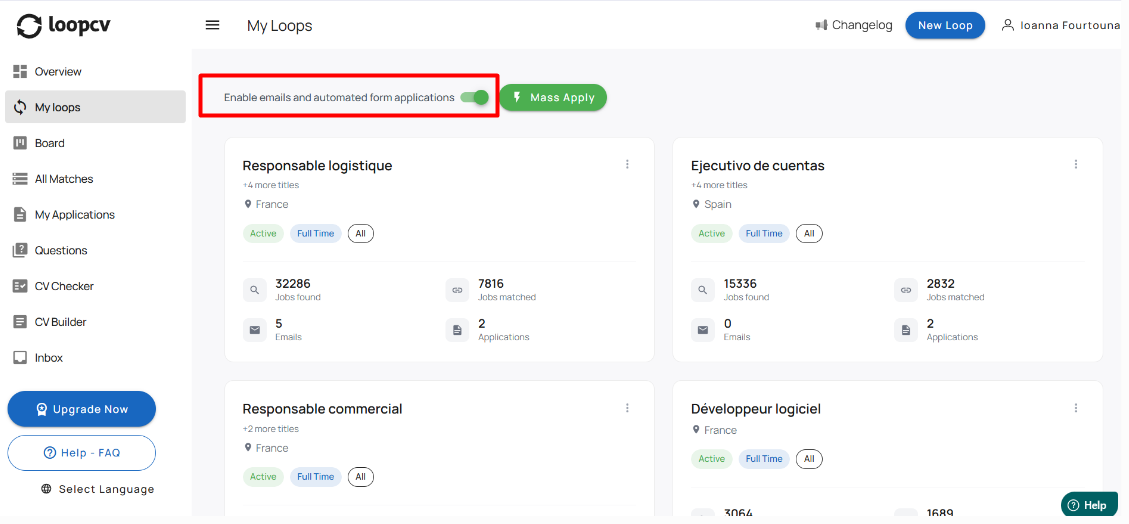
At the top of the My Loops page, you will find the toggle labeled:
“Enable emails and automated form applications.”
This toggle acts as a global control for automated applications across your account.
If this master toggle is disabled:
Automated email applications will not be sent
Automated form submissions will not be completed
Automation will remain inactive
This applies even if automation settings are enabled inside individual Loops.
If the master toggle is enabled, each Loop will follow its own automation configuration.
The master toggle must be enabled for Loop-level automation to function.
4.2 Viewing Loop Activity
Each loop displays basic activity information such as:
Number of matches collected
Number of applications submitted
Last activity time
This information helps you understand how the loop is performing. To view detailed match information, open the loop and go to the All Matches tab.
4.3 ‘All Matches’ tab
The All Matches tab is where you can view and manage all job postings collected by your Loop. Every posting that matches your search criteria (title, location, seniority, etc.) will appear here with a status that indicates what has happened or what action is available.
4.4 Purpose of the All Matches tab
The All Matches tab helps you:
Review all collected job postings
See how each posting was (or can be) applied to
Identify matches that require your input (for example, via extension or screening questions)
Track progress throughout your job search
It is normal to spend most of your time in this area during day-to-day usage.
4.5 What you see in the All Matches tab
For each job match, the tab displays:
Job Information
Title, company name, and location.Platform Source
Where the job was found (for example LinkedIn, Indeed, Reed, StepStone, etc.).Status
Indicates the current state of the match (for example: Applied Automatically, Email Sent, Extension Supported, etc.).Date Information
Such as when the match was discovered or when the application was submitted.
4.6 Filtering Matches
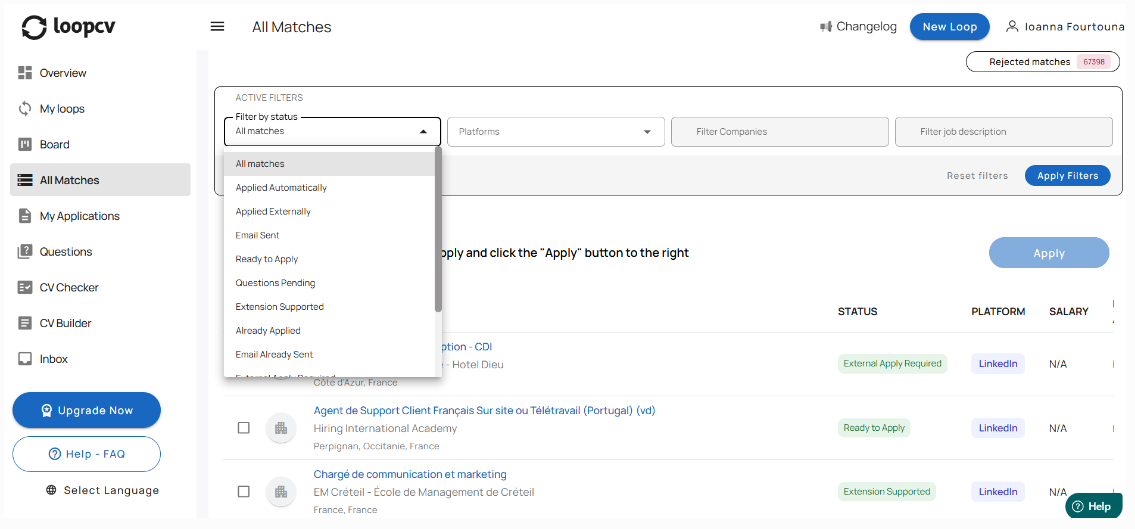
On the left side of the tab, you will find filters based on status.
MATCH STATUSES
Statuses help you understand what has happened with each job and whether any action is required from your side.
Below is what each status means.
Applied Automatically
LoopCV successfully submitted the application through an online form.
Your CV and required details were included.
Action needed: None.
Email Sent
LoopCV sent an application email directly to the employer using your selected email template, and attached your CV.
Action needed: None
Applied Externally
This status means you have already applied manually outside of LoopCV.
It is manually selected by you from the “Actions” menu of the match to help keep your dashboard accurate.
Action needed: None from LoopCV.
Ready to Apply
The job posting is valid and can be applied to, but no application has been submitted yet.
This may happen when:
Automations are disabled
Action needed: Select the matches and click on the ‘Apply’ button.
Questions Pending
The application form includes screening questions that need to be answered before submitting.
If AI Answering is enabled for your plan, AI may answer automatically.
If not, the questions will appear in your “Questions” tab for manual input.
Action needed:
Answer screening questions manually in your ‘Questions’ tab (unless handled by AI).
Extension Supported
The job can be applied to using the Chrome Extension on job boards that support an “Easy Apply” flow (e.g. LinkedIn, Indeed, Dice, Reed, StepStone, GulfTalent).
These matches wait for you to apply through the extension.
Action needed:
Apply via the Chrome Extension.
Already Applied / Email Already Sent
LoopCV has applied to this company within the last 6 months.
To protect user credibility, LoopCV does not apply more than once to the same company within a 6-month period.
Difference between the two labels:
Already Applied refers to form-based submissions
Email Already Sent refers to email-based submissions
Action needed: None.
External Apply Required
A manual application is necessary because the job redirects to an external website where LoopCV cannot submit automatically.
This typically occurs when:
Account creation is required
Login is required
The employer uses a private portal
Action needed:
Apply manually, following the job link posting.
Submitting
LoopCV is currently in the process of submitting the application.
Action needed: None.
Once completed, the status will update (e.g. to Email Sent, Applied Automatically, Failed).
Failed
LoopCV attempted to submit the application but was unable to complete it.
Common reasons include:
Temporary platform errors
Website blocks or timeouts
Employer no longer accepts applications
Action needed:
You may retry or apply manually.
Expired
The Expired status indicates that a job listing is no longer active on the original job platform.
This typically occurs when:
The employer has closed the position
The job posting has reached its expiration date
The listing has been removed by the job board
Expired listings remain visible for reference purposes, but applications can no longer be submitted.
Action needed: None
4.7 Rejected Matches
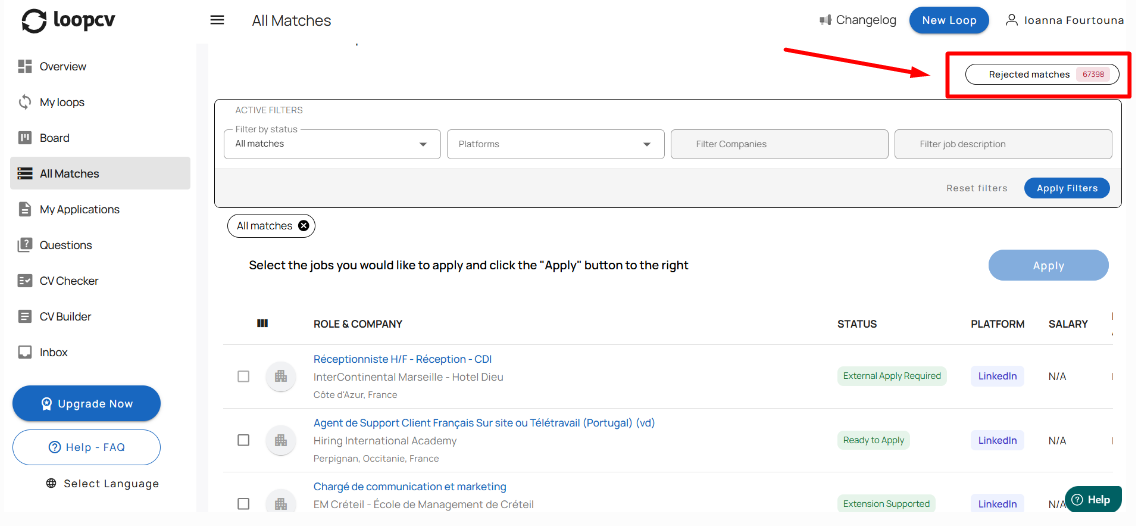
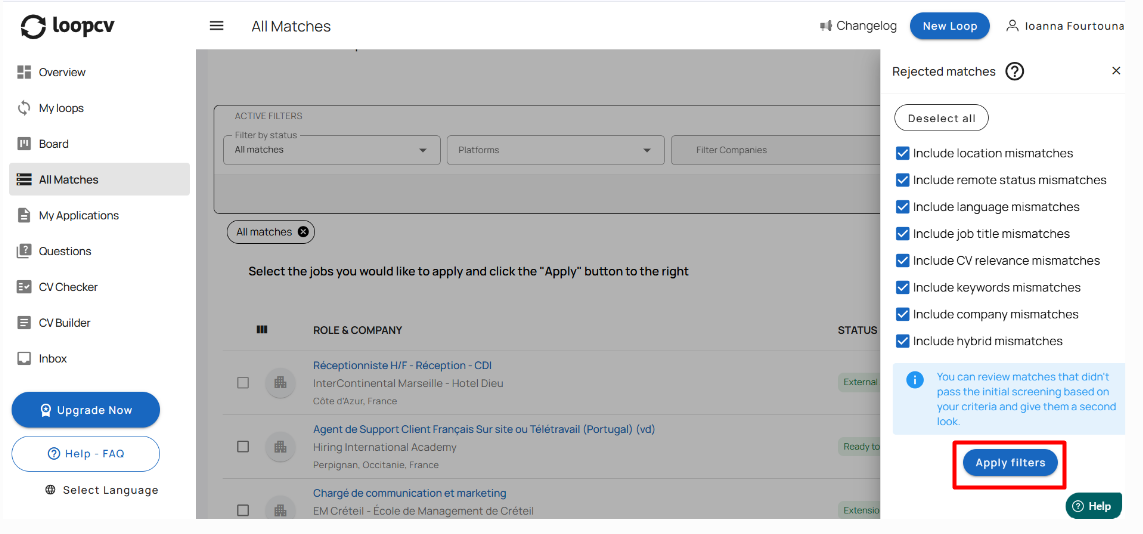
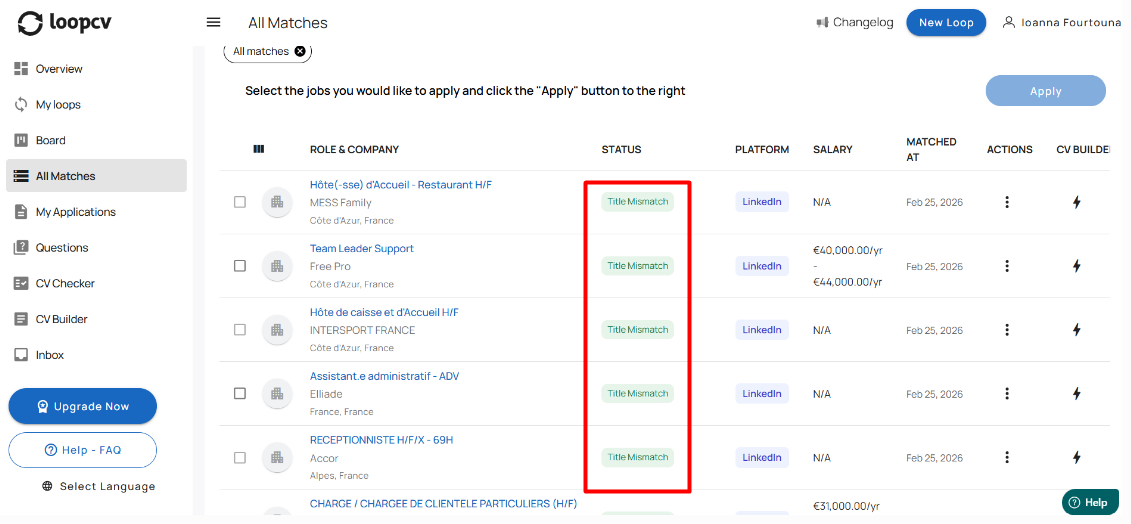
Rejected matches are job listings that were scanned by the system but did not meet your Loop criteria and were therefore excluded from your active matches.
This may occur when a job does not align with your selected:
Job title
Location
Remote or hybrid preference
Language (non English, French, German & Spanish job listings)
Required or excluded keywords
Company exclusions
CV relevance
You can view your rejected jobs (mismatches) in the All Matches tab by clicking on the Rejected Matches button and selecting the relevant mismatch category (for example, location mismatches, keyword mismatches, or job title mismatches).
If you identify a listing that fits your preferences, you can still apply to it.
4.8 Editing your Loop
You can edit the configuration of an existing loop at any time. Editing allows you to adjust settings such as:
Job title
Location or remote/hybrid mode
Seniority level
Keywords
Application settings (email/forms)
Career page search (if applicable)
Edits take effect immediately and future matches and applications will follow the updated configuration.
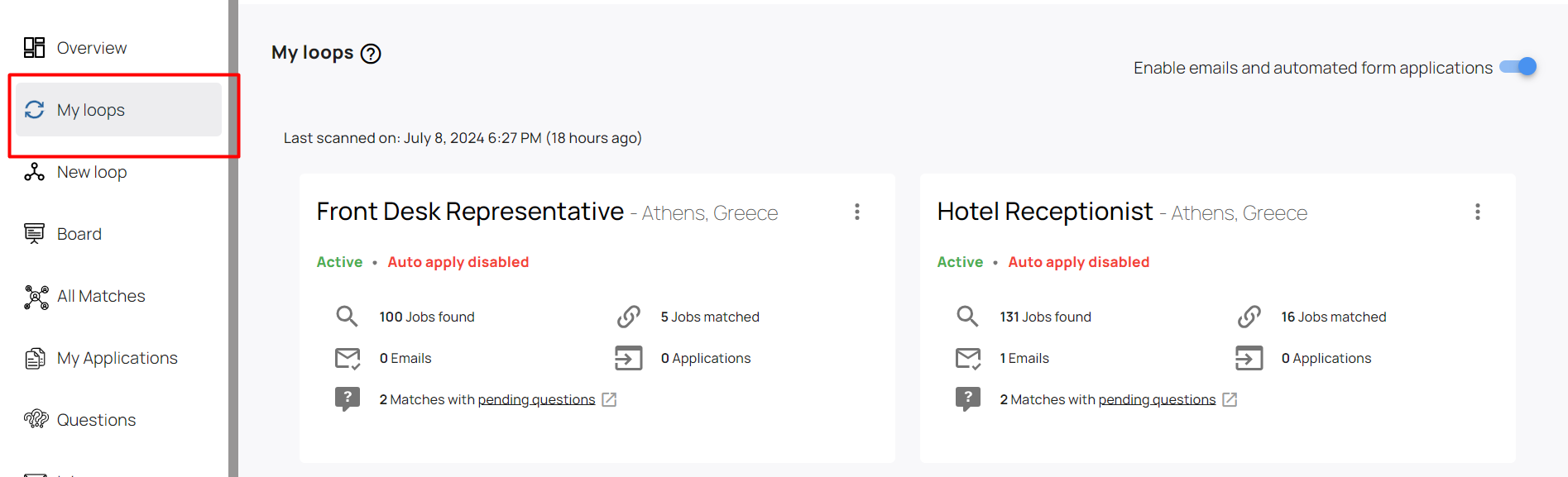
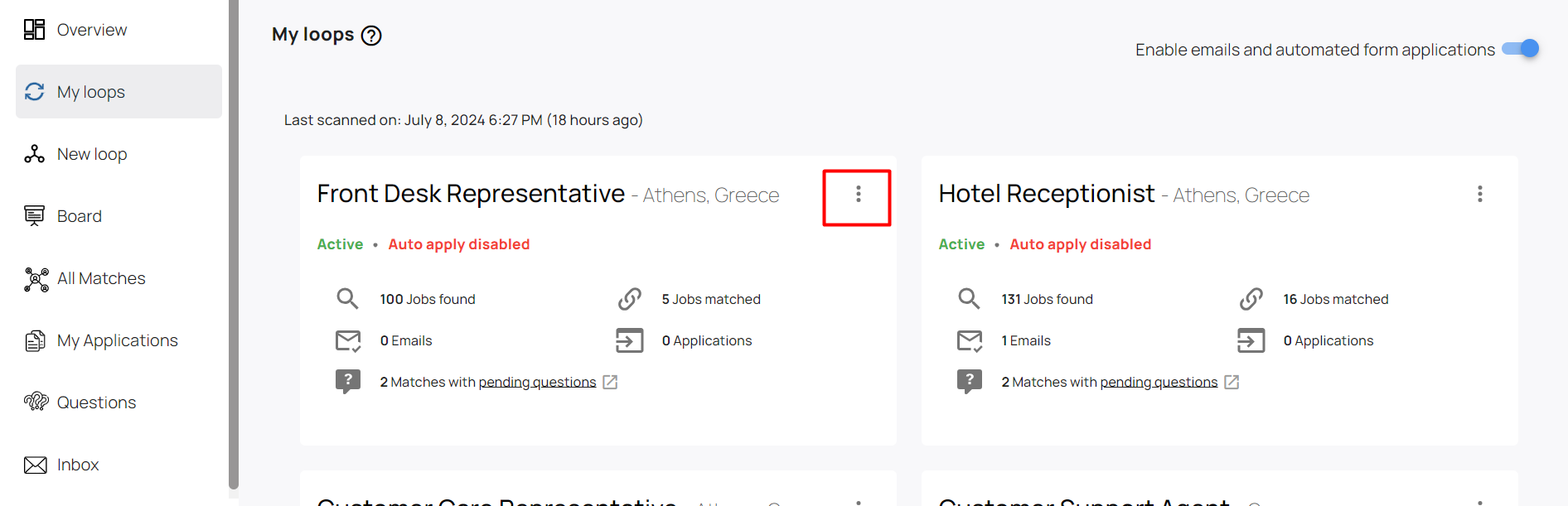
Here is a a useful 4-step guide showcasing how to edit your loop:
1. Go to "My Loops" tab:
2. Click on the 3 dots next to the loop you want to edit:
3. Click on "Edit Loop":
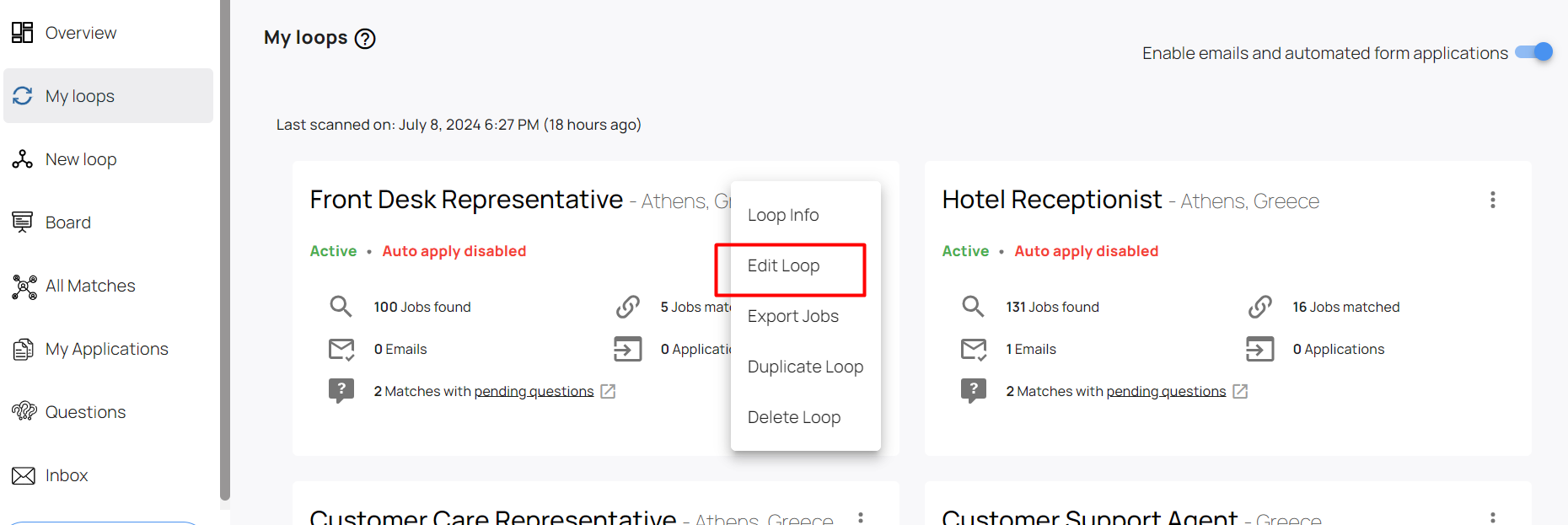
4. Then you will be able to make any kind of change or addition in your running loop(s). After editing your loop you click "Save and Run" on the bottom right corner, and your loop will continue to run.
4.9 Duplicating a Loop
Duplicating creates an identical copy of an existing loop. This is useful when you want to keep the same configuration but change only one or two elements without starting from scratch.
The new loop can then be adjusted independently from the original.
How can I duplicate a loop?
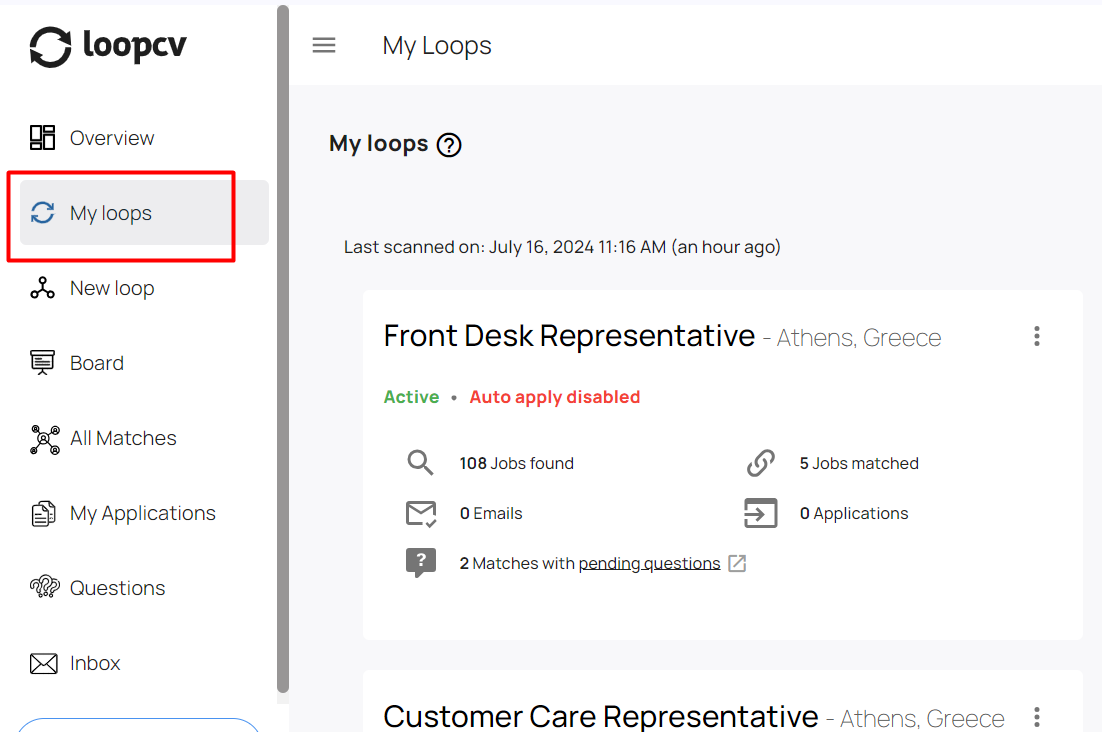
1. Click on the "My Loops" tab from top left menu list:
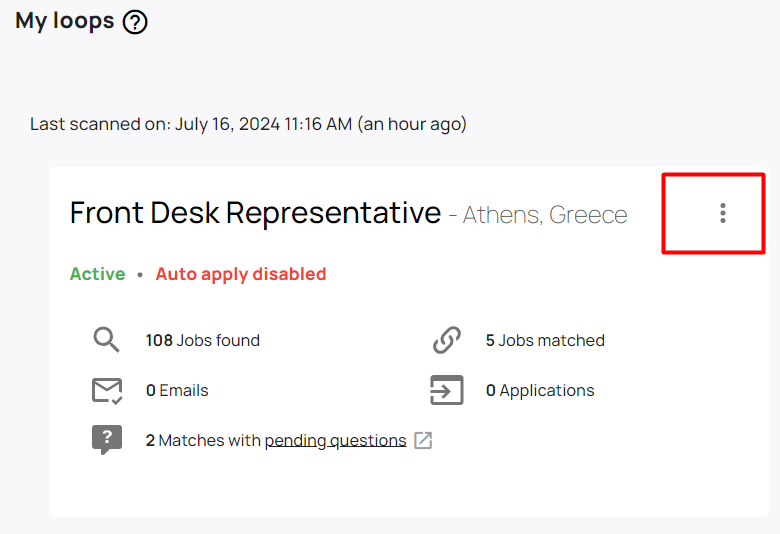
2. Locate the loop that you would like to edit and click on the ‘’3 dots” icon (next to or under the job title) to open the settings:
3. Click on “Duplicate Loop” to start the process:
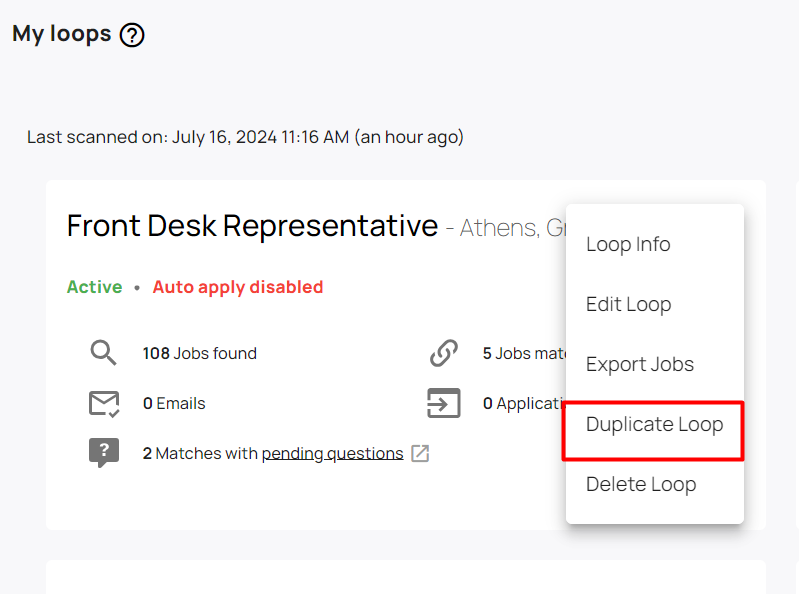
Once you click on the “Duplicate Loop” button, you will be redirected to a new duplicated loop where you will be able to perform changes or additions. You are able to edit/change either the job title, location, job boards, seniority level, type of jobs, select a different CV, email templates, automation enablements, keywords, and/or matching level.
At the same time, you are able to only edit the job title or location and keep the rest settings as is. It is up to you what parameters you want to modify. For example, you may create two loops with the 2 different job titles and keep location, seniority, job type, CV, email template, keywords, and matching level as is.
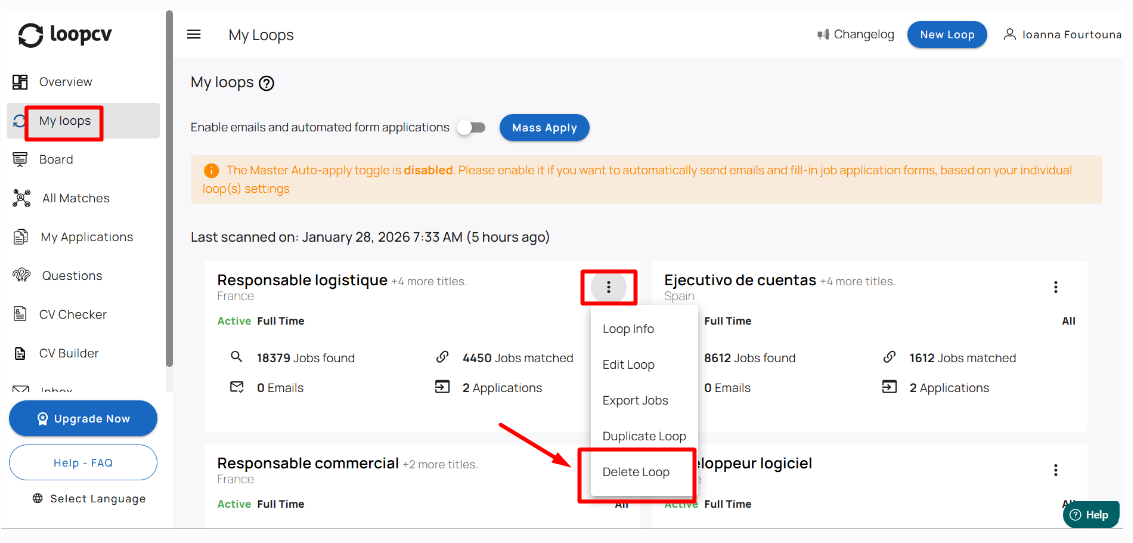
4.10 Deleting a Loop
If a loop is no longer needed, you can delete it. Deleting a loop:
Stops future match collection
Removes the loop from your dashboard
Deleting a loop does not delete the matches that were collected through it.
5. Questions & AI Answering Explained
Some job applications include screening questions (for example about experience, eligibility, or availability). LoopCV needs these questions answered before it can complete the application.
Screening questions may appear in two situations:
Automated applications (via form submission)
Extension-based applications (via Chrome Extension)
In both cases, questions are collected in the Questions tab.
When do questions appear?
Questions appear when:
A job uses a form-based application flow, and
Screening questions are included, and
An answer is required to proceed
Platforms that commonly show screening questions include LinkedIn, Indeed, and similar job boards that rely on structured application forms.
5.1 Handling Questions
If you are not on Premium or Done For You, you will answer questions manually.
How to answer manually
Go to the Questions tab
Provide the answer (type or select)
Submit your response
What happens after answering?
For automated applications:
After answering, LoopCV continues the application automatically.For extension-based applications:
After answering, you must re-run the extension to complete the application .
5.2 Handling Questions with AI Answering
(Available only for Premium and Done For You plans)
If you are on Premium or Done For You, AI Answering may respond to questions automatically.
How AI Answering works
AI Answering uses:
Your CV
Your profile details
Previously provided answers (when applicable)
What happens after AI answers?
For automated applications:
LoopCV continues the submission automatically without user intervention.For extension-supported applications:
When AI Answering is enabled, the AI will fill in screening questions in real time during the Chrome Extension run.
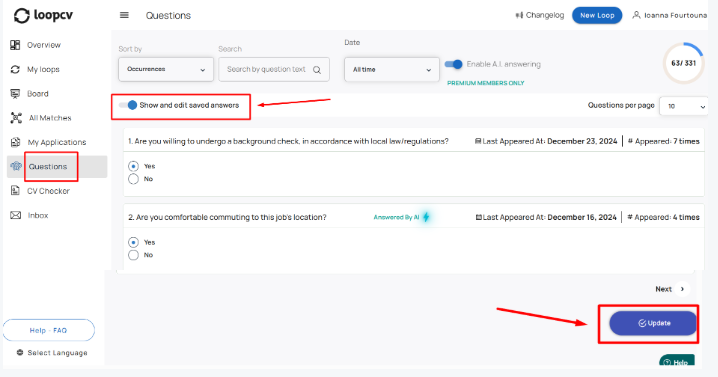
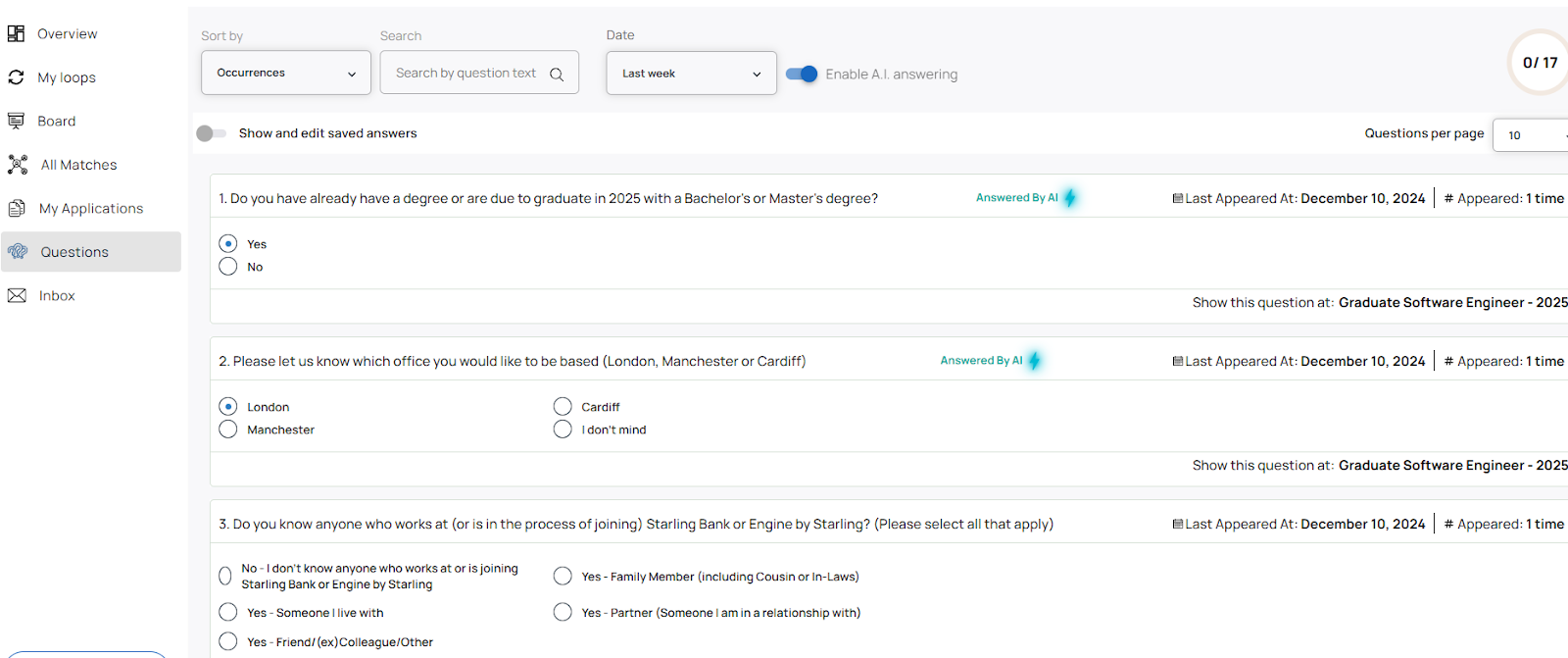
Important note: You can view and edit all answered questions by enabling the ‘Show and edit saved questions’ toggle, in your Questions tab.
6. Chrome Extension (Apply Tool)
6.1 Overview
Some job boards require the user to be logged into their account and present during the application process. These platforms often provide an “Easy Apply” style button.To support these cases, LoopCV provides a Chrome Extension that allows you to apply directly on those job boards using your existing browser session.
6.2 Supported Platforms
Currently, the extension applies to matching postings found on:
LinkedIn
Indeed
Dice
Reed
StepStone
GulfTalent
Matches found on these platforms will appear with the status Extension Supported in the All Matches tab. They will remain in this status until the user runs the extension.
6.3 How can I set up and use the Chrome extension feature?
For the setup:
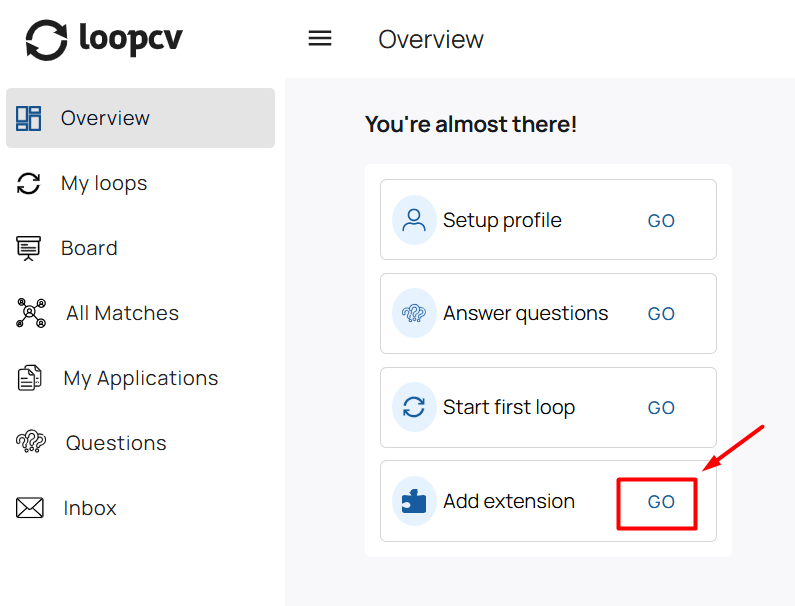
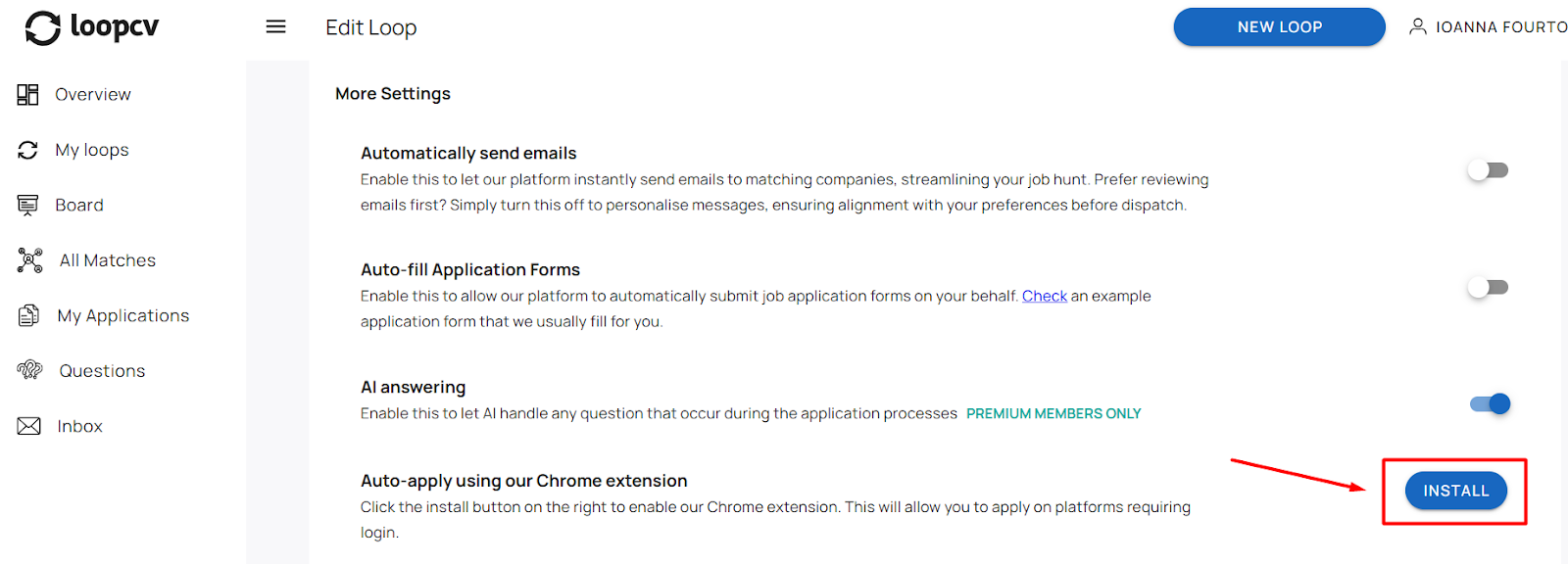
1. The only thing you need to do is download the Apply Tool on your ‘Overview' tab:
Or by clicking the Install button on the third slide (Settings) while creating or editing a loop:
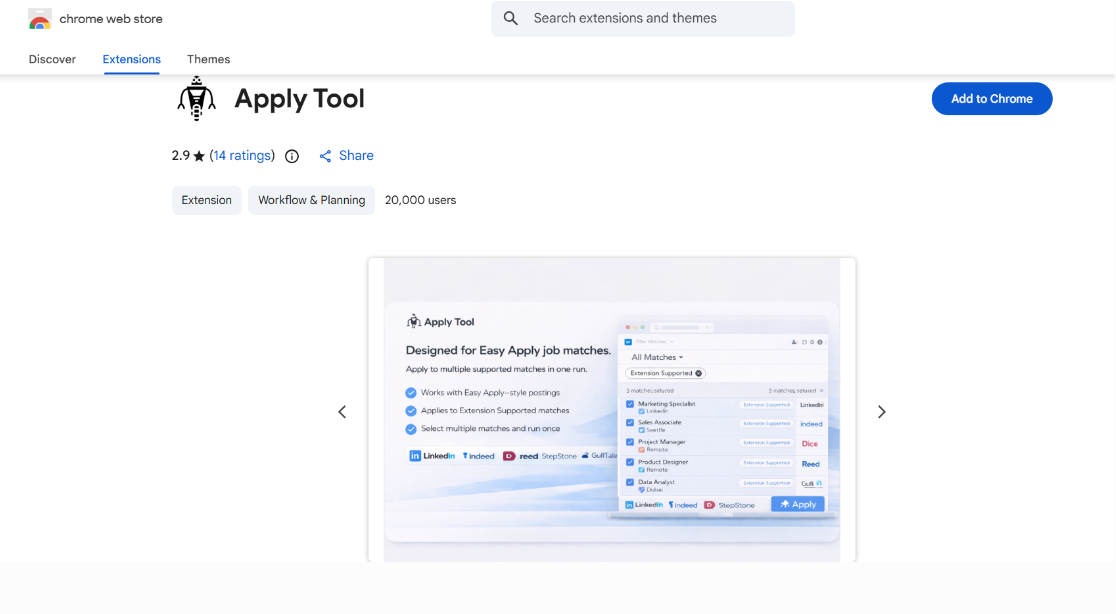
2. Once you go to the respective chrome page, press the “Add to Chrome” button.
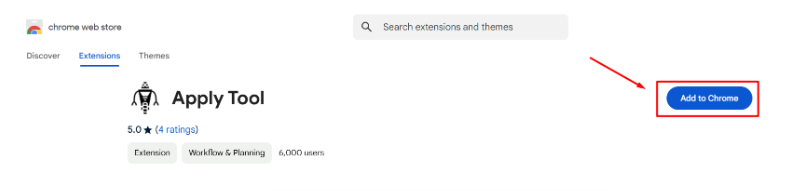
Right after this, the Chrome Extension will be downloaded and added into your chrome browser.
For the use:
Please ensure that:
You are logged into your LinkedIn, Indeed, Reed, Dice, StepStone, GulfTalent accounts.
Your CV is uploaded to these platforms, as it will be the one sent to the companies.
Then:
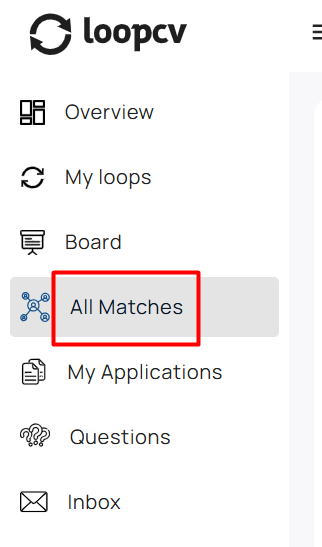
1. Navigate to your 'All Matches' tab.
2. Filter by status 'Extension Supported’.

3. Check the boxes next to the job titles.
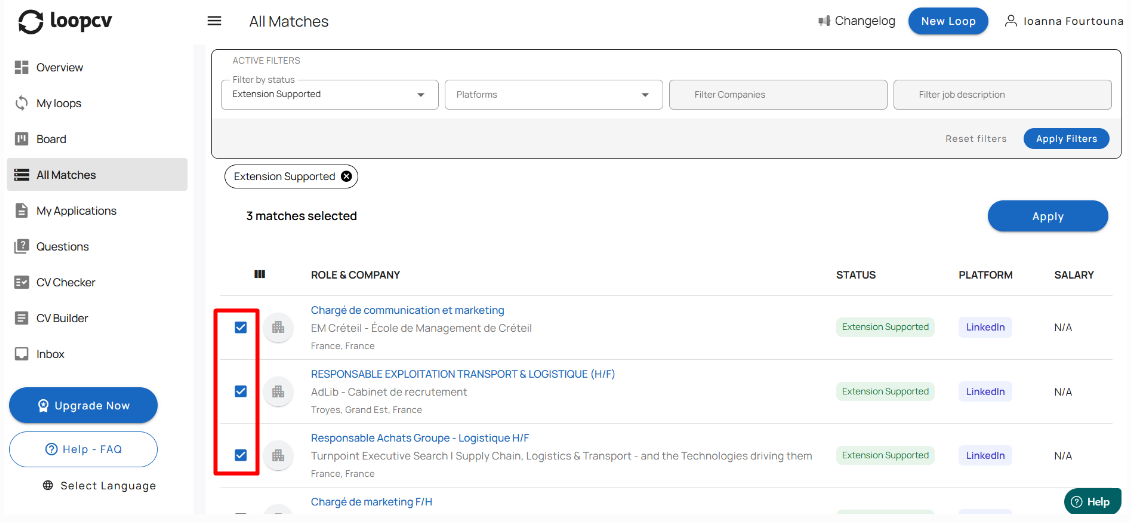
4. Click the Apply button.
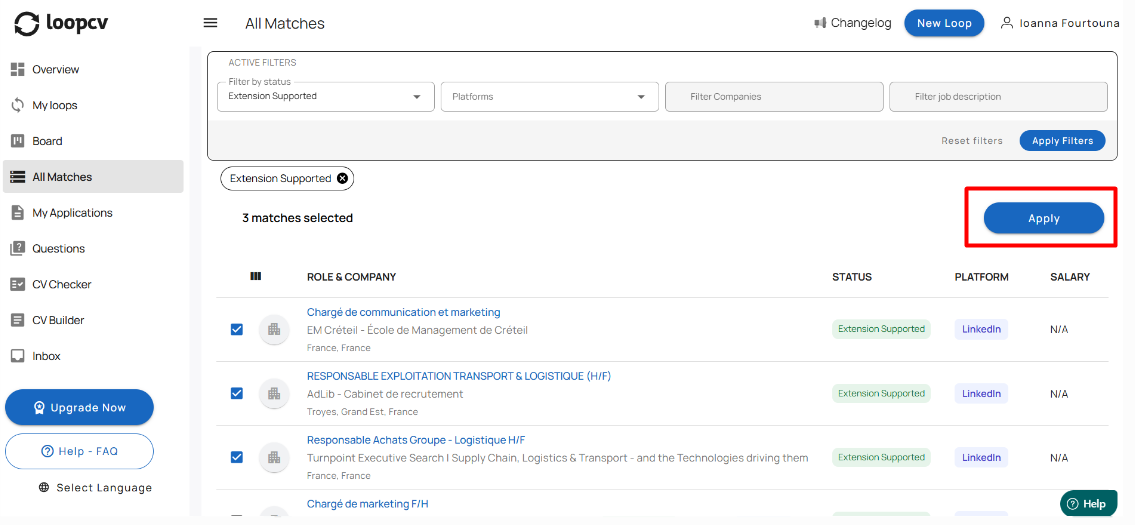
5. A pop up window will appear, notifying you that you have selected matches that are supported by the extension. Click the Confirm button.
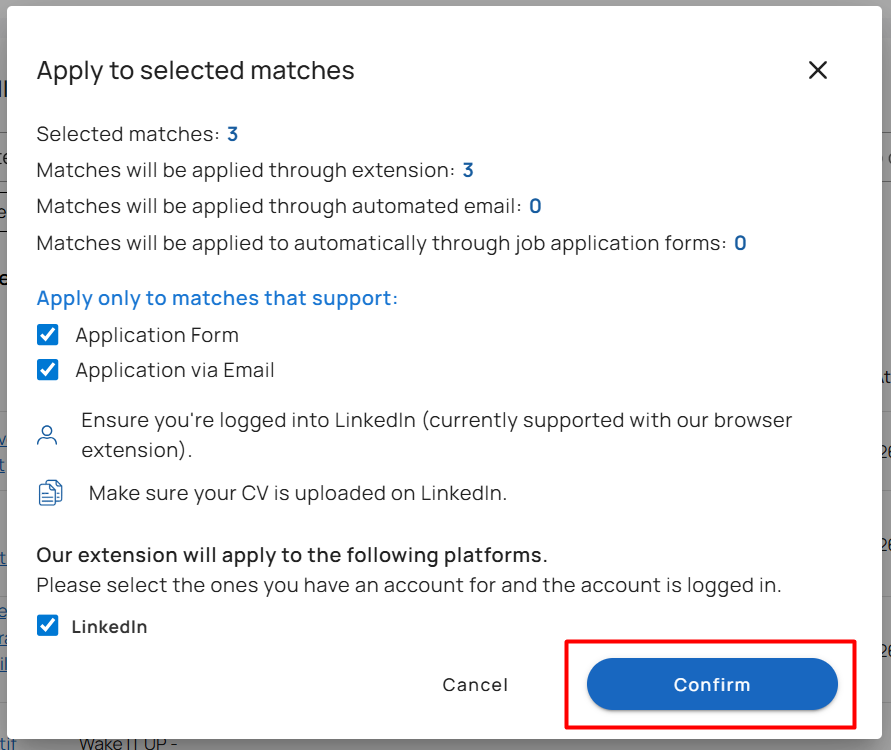
6. Once you click the Confirm button, you will be redirected to the LinkedIn, Indeed, Dice, or Reed page. The blue bar at the bottom of the page indicates that the Chrome Extension is active and proceeding with the application process on your behalf.
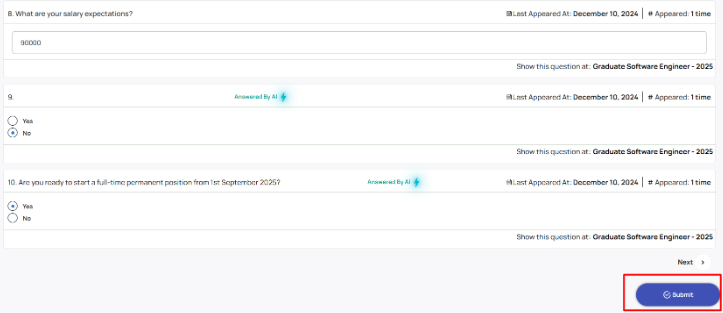
7. If there are additional questions during the application process, the tool will gather them for you. By clicking the ‘Answer Questions’ button on the Job Applications Report page, you will be redirected to your ‘Questions’ tab to provide your answers. Once the answers are submitted, simply rerun the extension, and the questions will be automatically filled in.
Please advise the screenshots below:
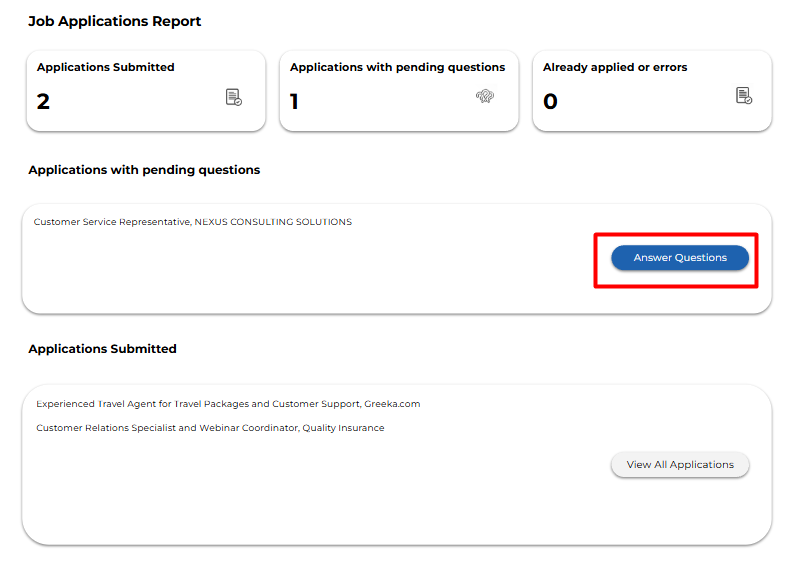
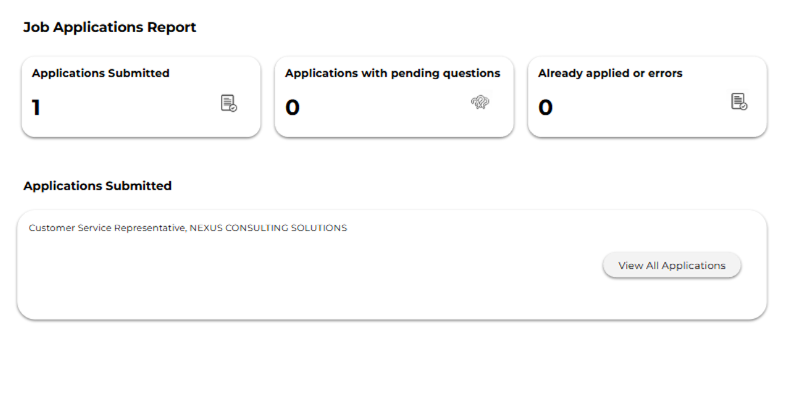
8. At the end of the Chrome Extension run, you will be able to view the results on the Job Application Report page.
For our Premium Looper and Done For You plan users who have enabled AI answering, the questions will be automatically filled in without any further action required from them.
Here are our video guides for using the Chrome extension effectively:
https://share.synthesia.io/c43a1d06-f64e-4799-8b22-6cea232c45dd - Part 1
https://share.synthesia.io/f5de5b9f-0b0a-405e-a0de-6abbffcc1cae - Part 2
https://share.synthesia.io/e63c58f0-53b8-4be2-9c54-6369255dcd61 - AI Answering feature
7. SMTP Configuration
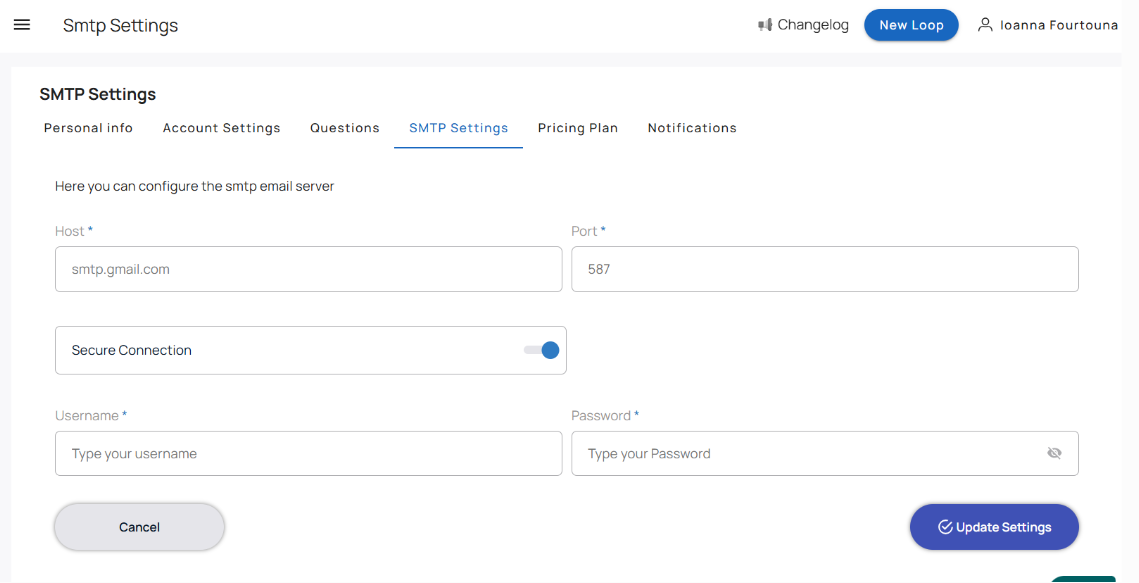
SMTP configuration allows paid users to send application emails directly from their own email address instead of sending from LoopCV’s default domain. This feature is optional and only available on paid plans.
With SMTP enabled, outbound application emails appear as if they were sent by you, increasing credibility and improving reply rates.
7.1 Who Can Use SMTP?
Paid plans: SMTP configuration is available and optional.
Basic plan: SMTP configuration is not available.
If a user on a paid plan chooses not to configure SMTP, LoopCV will continue using the default sending behavior.
7.2 Default Sending Behavior (No SMTP)
If SMTP is not set up:
Emails are sent from a LoopCV-managed address (@loopcv.com)
Replies from employers are forwarded to the email address linked to your LoopCV account
This ensures that even without SMTP, email outreach still functions correctly.
7.3 What SMTP Does
When SMTP is configured:
Application emails are sent directly from your email account
Employers will see your email address as the sender
This is useful for:
Personal branding
Higher trust with employers
7.4 Requirements for SMTP Setup
To configure SMTP, you must provide:
SMTP server
Port
Email address
App Password
Encryption type (SSL/TLS)
7.5 Gmail SMTP Settings
First of all, you need to turn on the 2-Step Verification on your Gmail.
1. Login to your Gmail account.
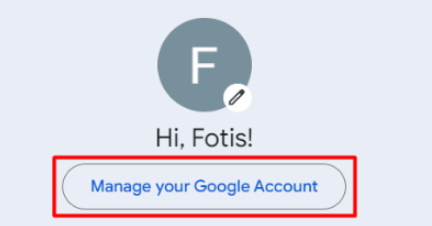
2. By clicking on your profile icon on the top right, you can see the option to “Manage your Google Account”.
3. Navigate to your “Security” page.
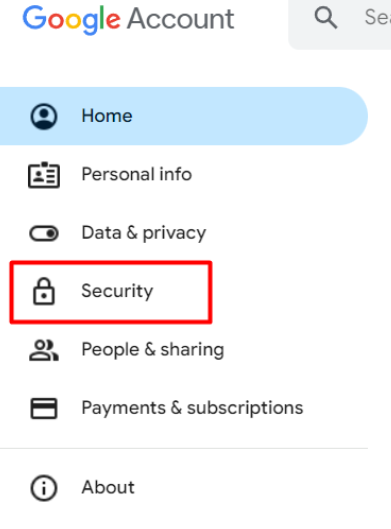
4. Scroll down and access the “2-Step Verification” setting.

5. Click on the respective button to enable the 2-Step Verification.
6. Go back to the previous page, search for “App Password” on the search bar and click on the respective result.
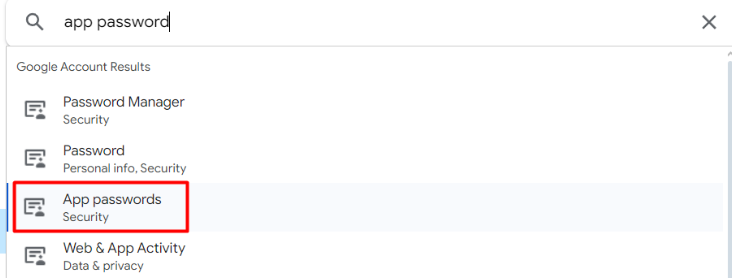
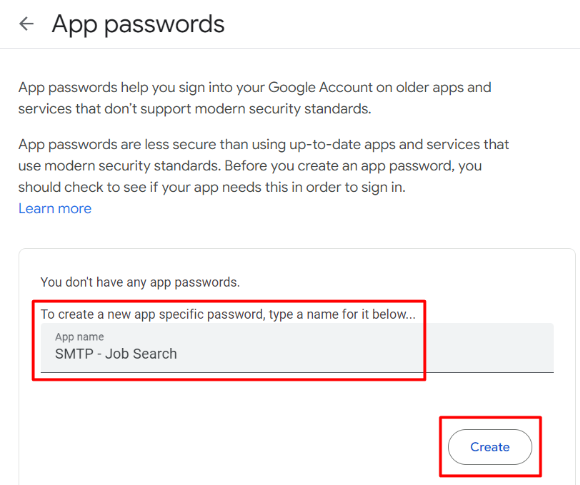
7. Now you are ready to create your App Password for the SMTP settings. Type a name for your new app password (e.g. SMTP - Job Search) and click on “Create”.
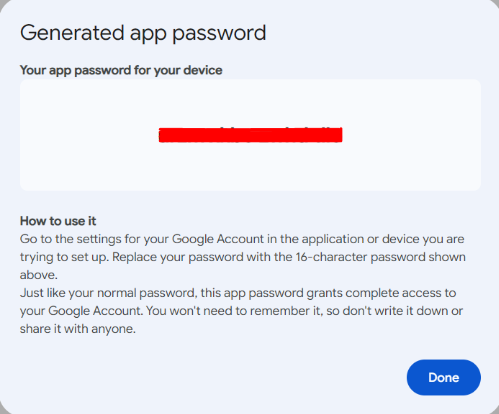
8. You should now see a unique password on your screen. Save this password, as you will need it later for the SMTP settings.
When you complete the above requirements, follow these simple steps:
1. Visit this link: https://app.loopcv.pro/profile/smtp
2. Gmail SMTP server address: Host: smtp.gmail.com & Port: 587
3. Gmail SMTP username: Your full Gmail address (e.g. username@gmail.com).
4. Gmail SMTP password: App Password (the one you should have created as indicated above).
5. Secure connection: Off
6. Click on the Save button on the down right corner.
Alternative Settings:
Port: 465
Secure Connection: On
7.6 Yahoo SMTP Settings
1. Login to your Yahoo account.
2. By clicking on your profile icon on the top right, you can see the option to “Manage your Google Account”.
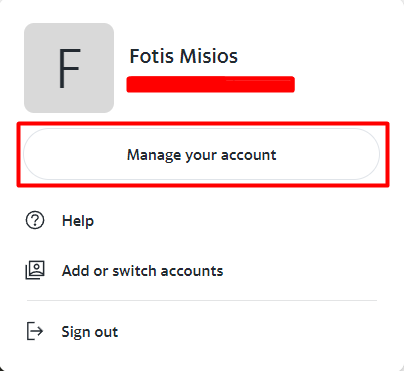
3. Click on “Security”.

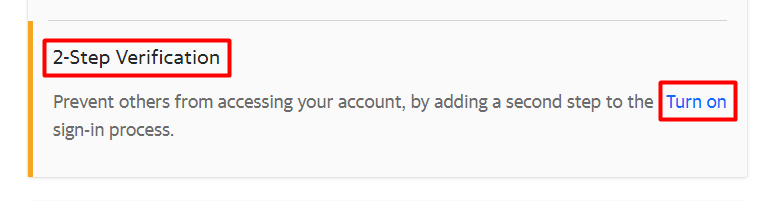
4. Scroll down until you find the “2-Step Verification” and click on “Turn on”.
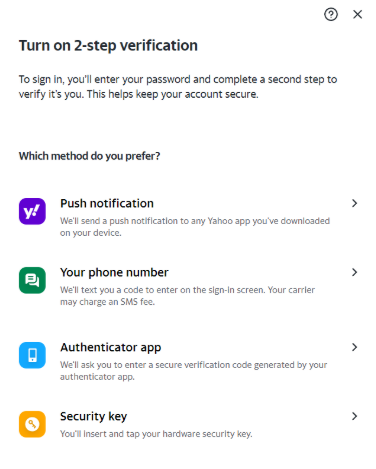
5. Choose a method of your preference and set up the 2-step verification setting.
6. Now you can find the App Password setting and generate one for the SMTP settings.
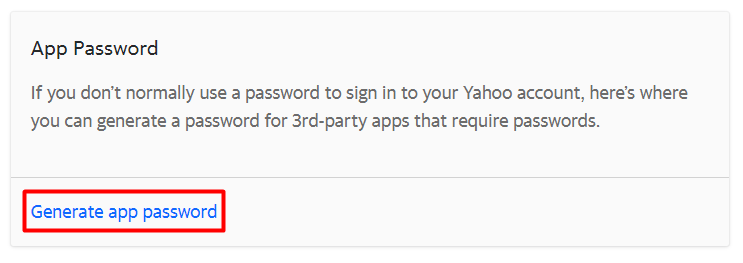
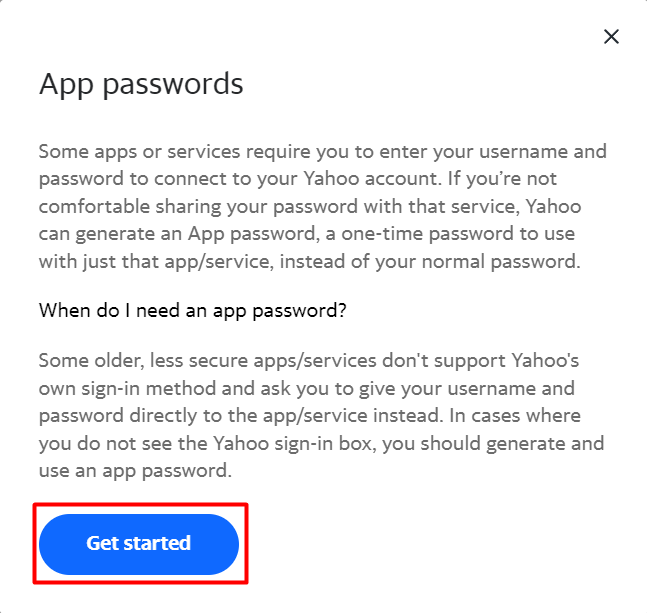
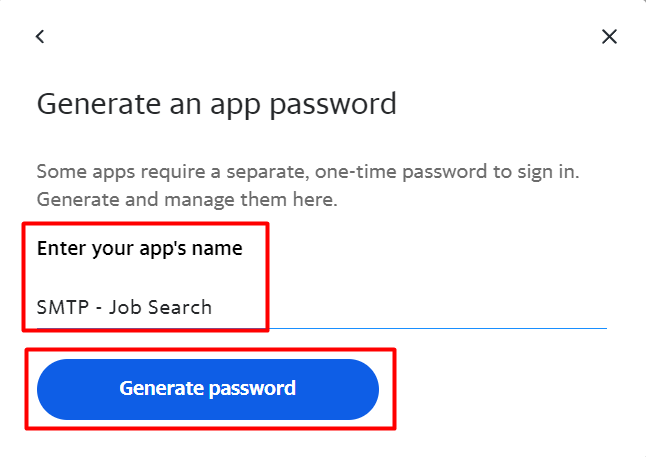
7. Type a name for your app password (e.g. SMTP - Job Search) and hit “Generate password”.
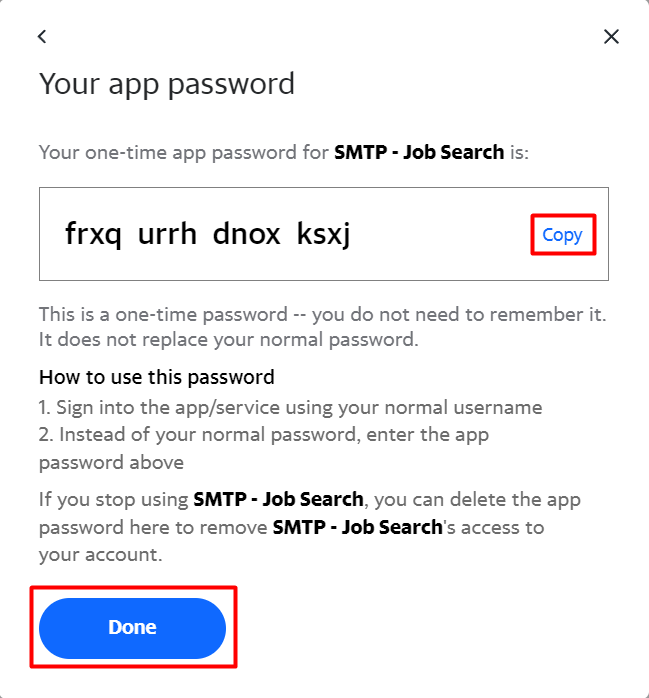
8. Copy the generated app password and save it, as it will be needed later for the SMTP settings.
When you complete the above requirements, follow these simple steps:
1. Visit this link: https://app.loopcv.pro/profile/smtp
2. Yahoo SMTP server address: Host: smtp.mail.yahoo.com & Port: 587
3. Yahoo SMTP username: Your full Yahoo address (e.g. username@yahoo.com)
4. Yahoo SMTP password: App Password (the one you should have created as indicated above).
5. Secure connection: Off
6. Click on the Save button on the down right corner.
Alternative Settings:
Port: 465
Secure Connection: On
8. Managing CVs
Your CV is attached to your applications and is a core part of how LoopCV represents you to employers. You can upload, replace, delete, and organize multiple CVs depending on your job search needs.
LoopCV allows you to manage CVs in two main places.
8.1 Method 1: Managing CVs While Creating or Editing a Loop
You can manage CVs directly inside the Loop creation or editing screen.
While creating or editing a Loop:
Upload a new CV from the upload area shown below your existing files
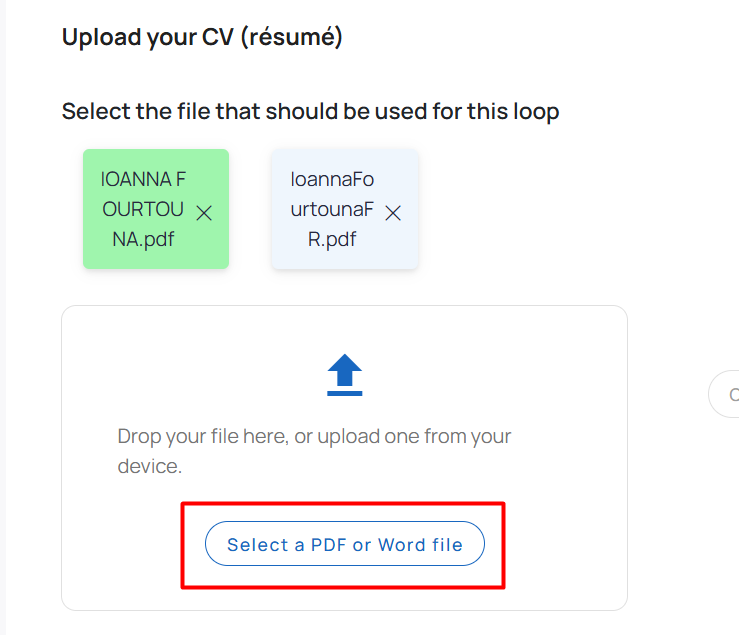
Click the “X” next to a CV to delete the cv you no longer wish to use
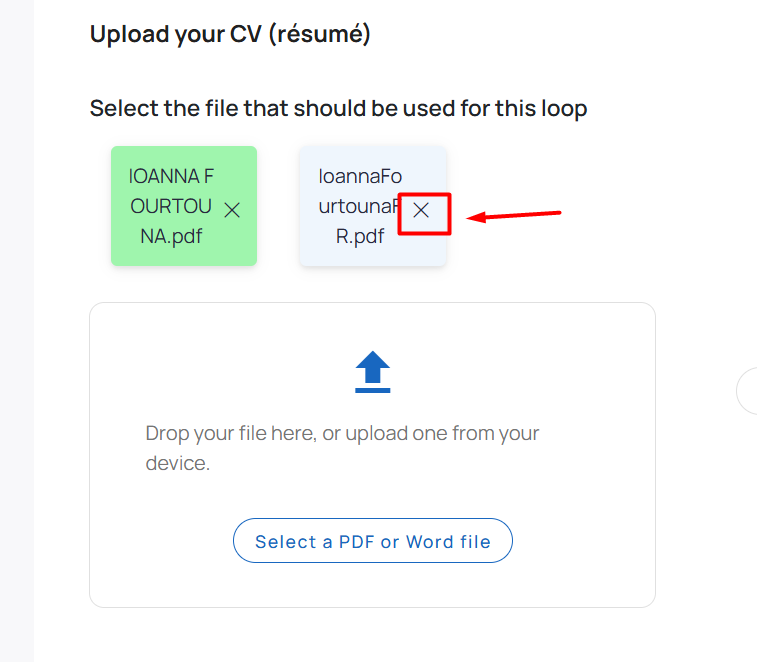
Each Loop can use a different CV, which is helpful when targeting different job types.
8.2 Method 2: Managing CVs from Account Settings
Your Account Settings page acts as your CV library.
To access it:
Open Account Settings
Scroll down to the CV section
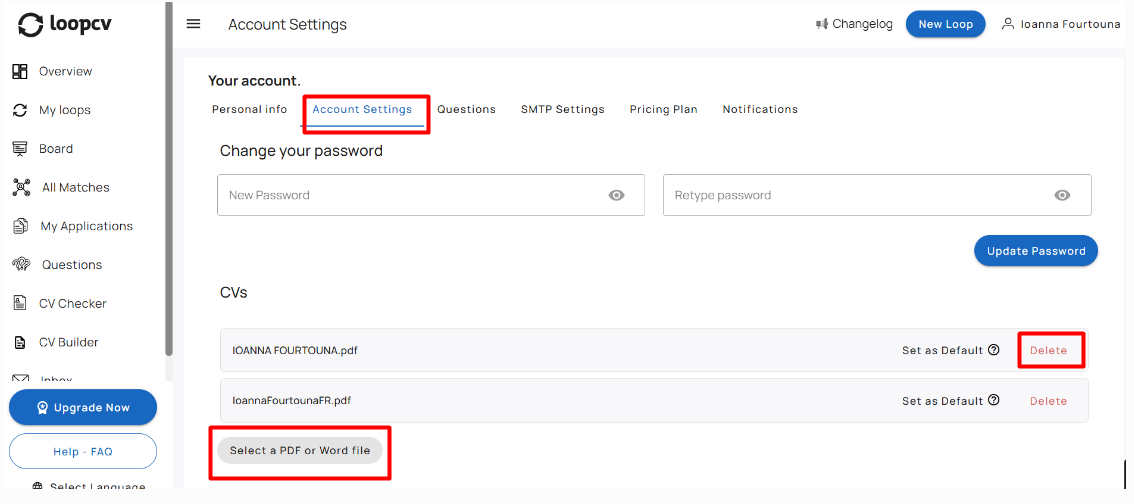
Deleting a CV removes it from your library, but it does not affect applications that were already submitted.
Please note: a CV cannot be deleted if it is currently assigned to a Loop. Replace it in your Loops first, then delete it.
8.3 Using the CV Builder
The CV Builder allows you to create and edit a structured CV directly inside LoopCV. You can choose a template, add content section by section, preview changes in real time, and export your CV as a PDF.
A finalized builder CV becomes available in your CV library and can be selected in any Loop.
8.3.1 Designer (Choosing a Template)
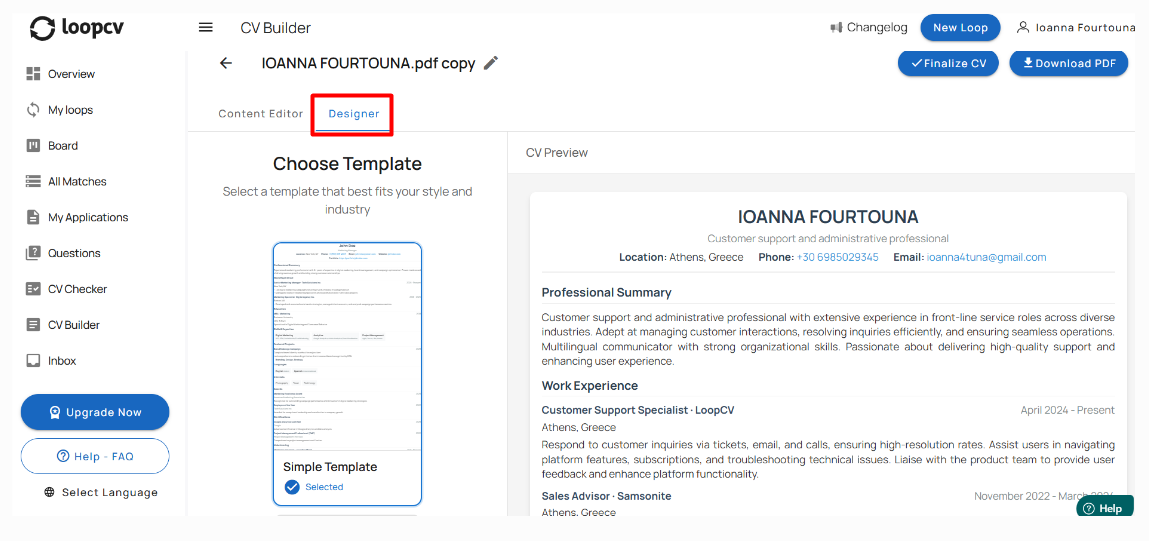
When you open the CV Builder, you first select a template.
Templates control the visual layout of your CV, including:
section placement
typography
spacing
visual style
Templates only affect appearance — your content stays the same and remains editable. You can change templates later without losing your information.
8.3.2 Content Editor
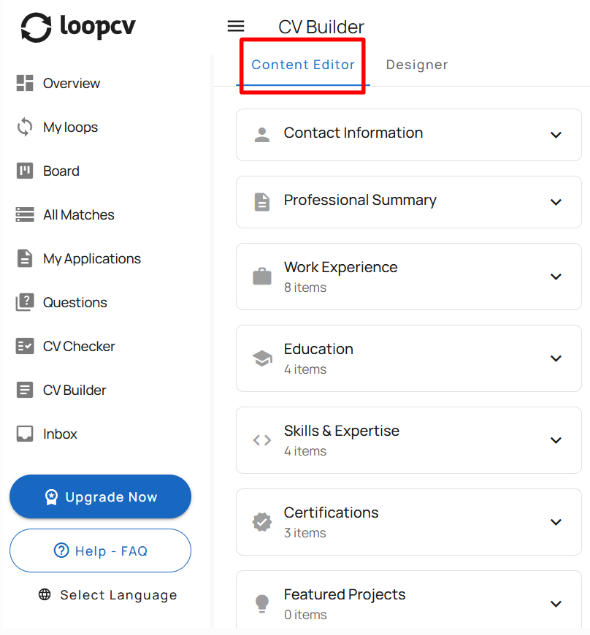
The Content Editor is where you add and manage your CV information. Each section can be expanded and edited individually.
Available sections include:
Contact Information
Professional Summary
Work Experience
Education
Skills & Expertise
Certifications
Featured Projects
Awards
Volunteering
Languages
Interests
Profiles (links such as LinkedIn/GitHub)
Publications
References
You can:
edit existing entries
remove sections you don’t need
reorder information depending on the template
The preview updates instantly as you type.
8.3.3 Live CV Preview
A live preview appears on the right side of the screen.
This preview shows exactly how your CV will look when finalized or downloaded. Any edits you make are reflected immediately.
8.3.4 Finalizing and Downloading
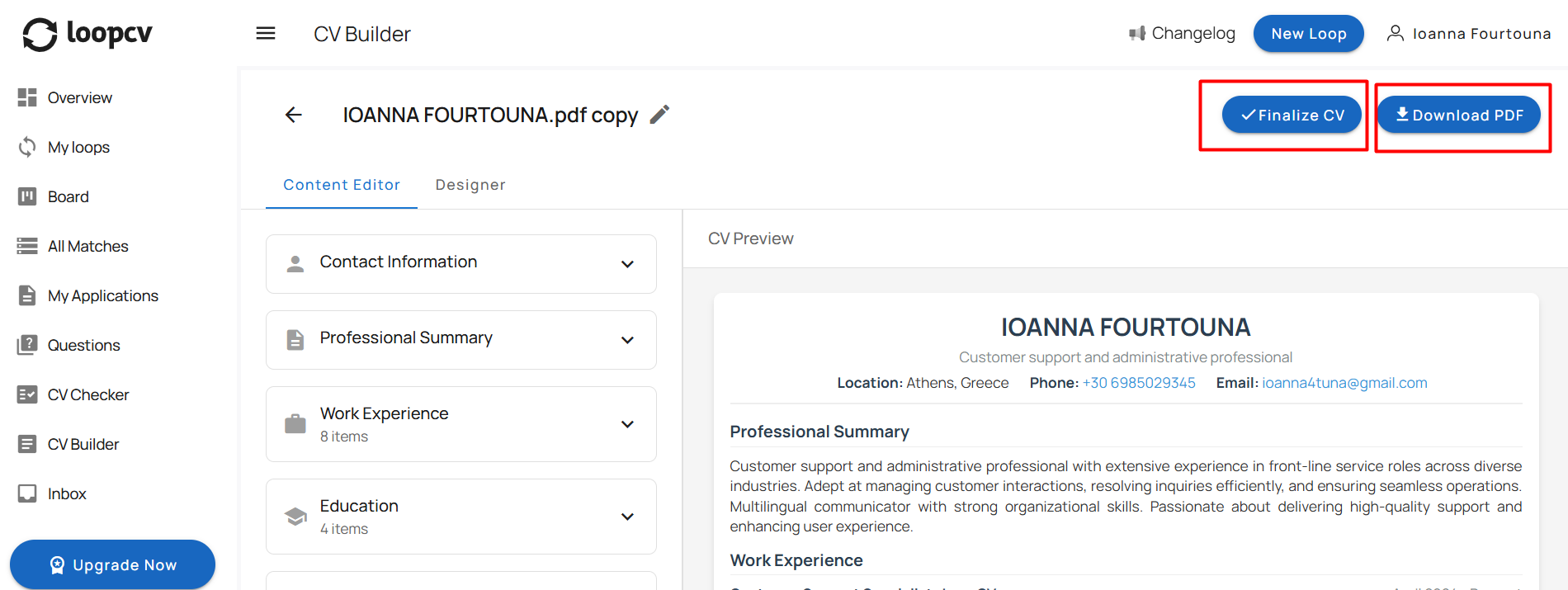
When your CV is ready:
Finalize CV
Finalizing saves the CV to your CV library so it can be selected inside your Loops.
Download PDF
Downloading saves a PDF copy directly to your computer. This does not change your Loop settings — it is simply an export.
8.4 CV Tailoring
CV Tailoring allows your CV to be adjusted to better match the specific job description of each listing. Instead of using one static resume for every application, LoopCV can tailor your CV so it aligns more closely with the skills, keywords, and requirements mentioned in the job posting.
This helps increase relevance and improves how your CV performs in applicant tracking systems (ATS).
8.4.1 What CV Tailoring Does
When CV Tailoring is active, LoopCV analyzes:
the job description
required skills and keywords
role responsibilities
and adjusts the CV content to emphasize the most relevant parts of your experience.
The goal is not to invent information, but to:
prioritize relevant skills
highlight matching experience
align terminology with the job posting
improve keyword matching
Your original CV information remains the source — tailoring only reorganizes and emphasizes existing content.
8.4.2 How It Works
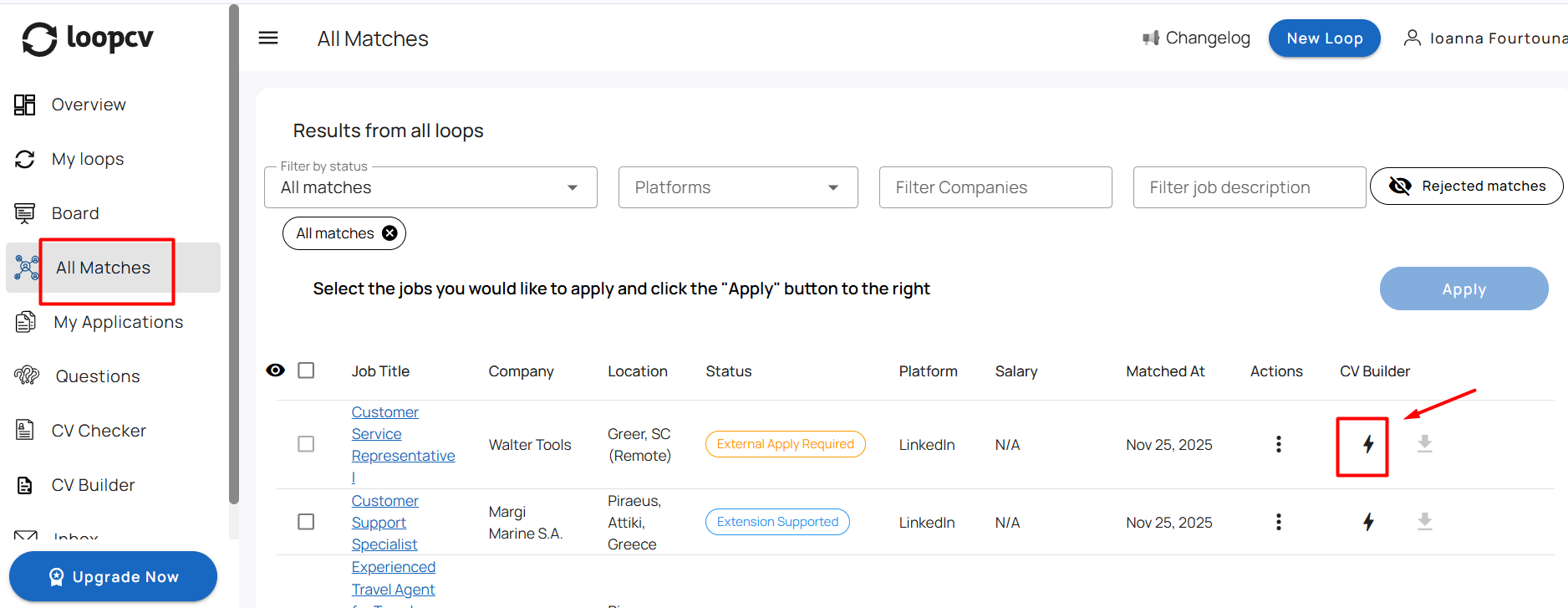
Go to your “All Matches” tab.
Click the lightning icon next to the job match you want to tailor your CV for.
3. You’ll be redirected to the CV Builder.
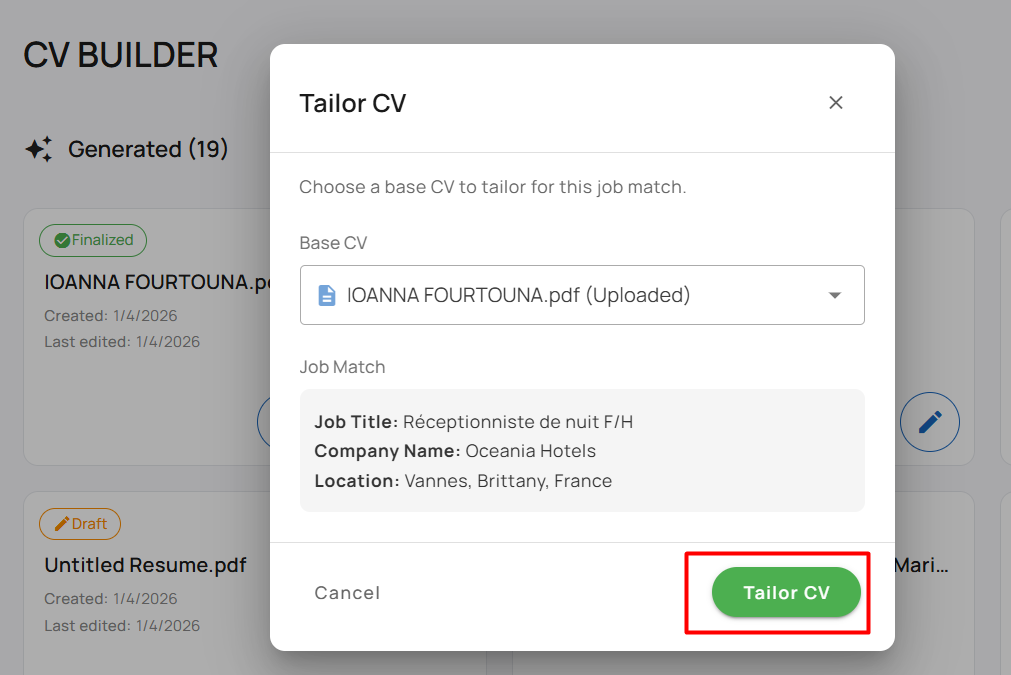
4. Select your CV, and click “Τailor CV”.
5. Once generated, click “Download PDF” to save your tailored CV.
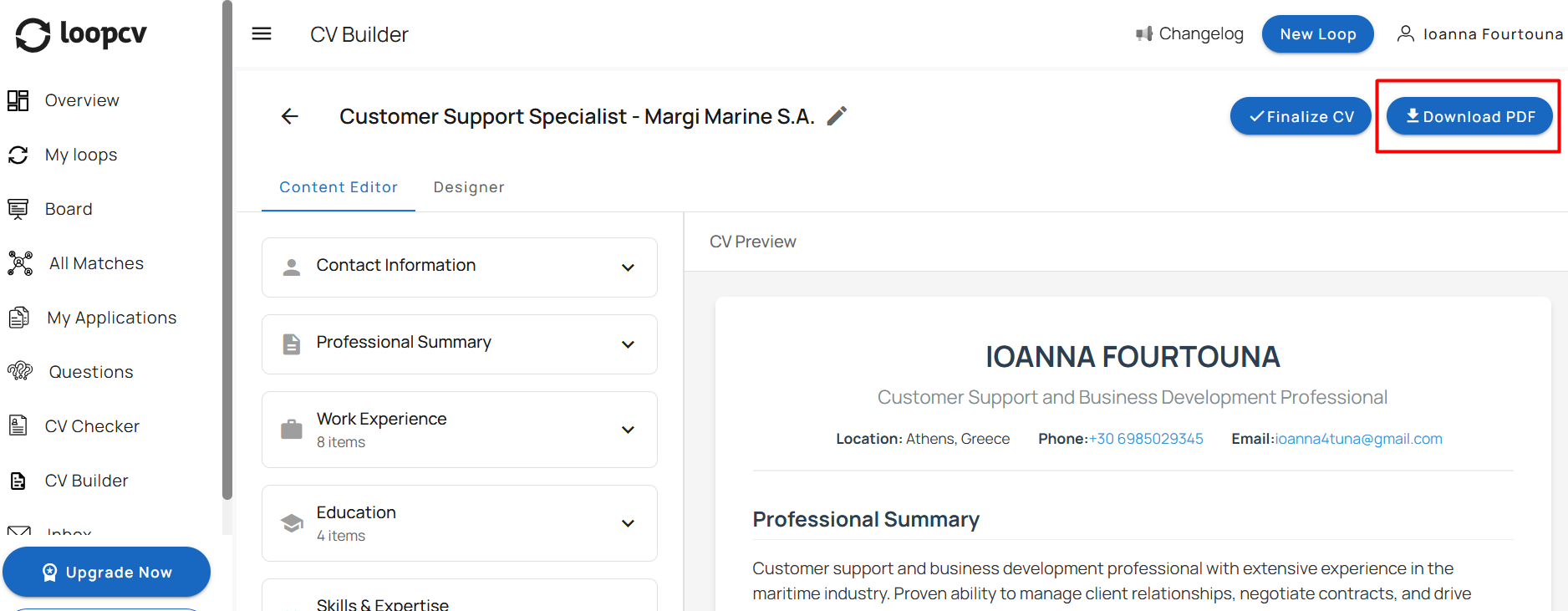
If you want to upload your tailored CV to a specific loop, follow these steps:
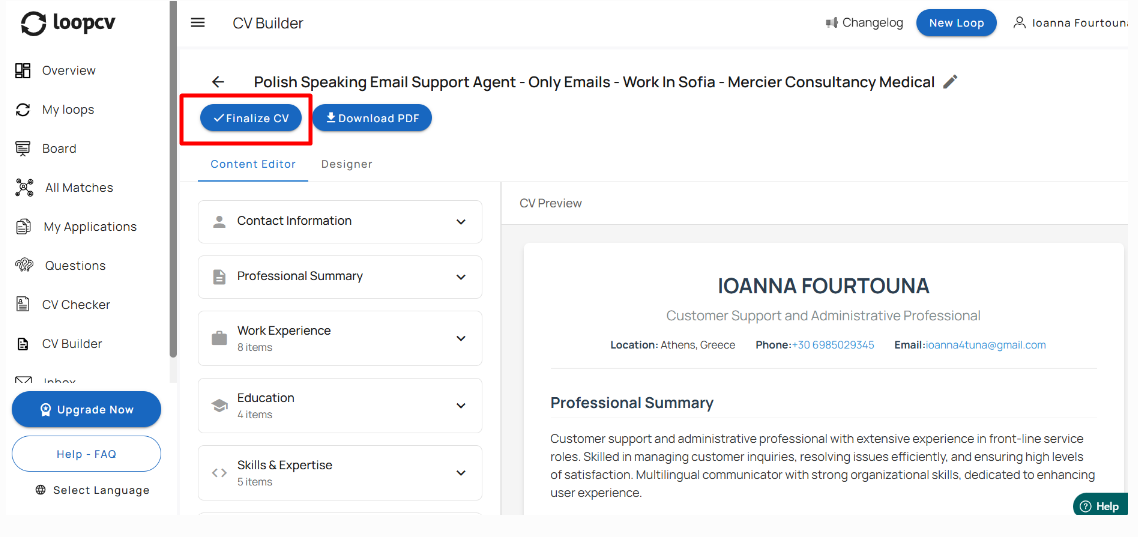
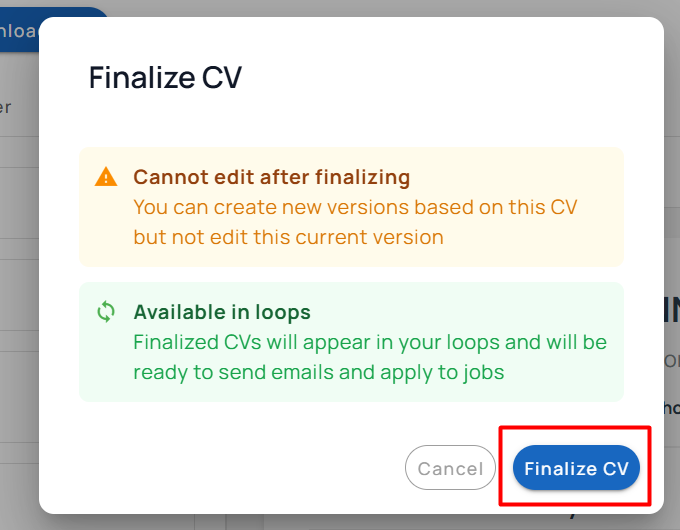
Click the Finalize CV button. Once finalized, your CV will be added to your available CVs.
2. Go to the loop where you want to use it.
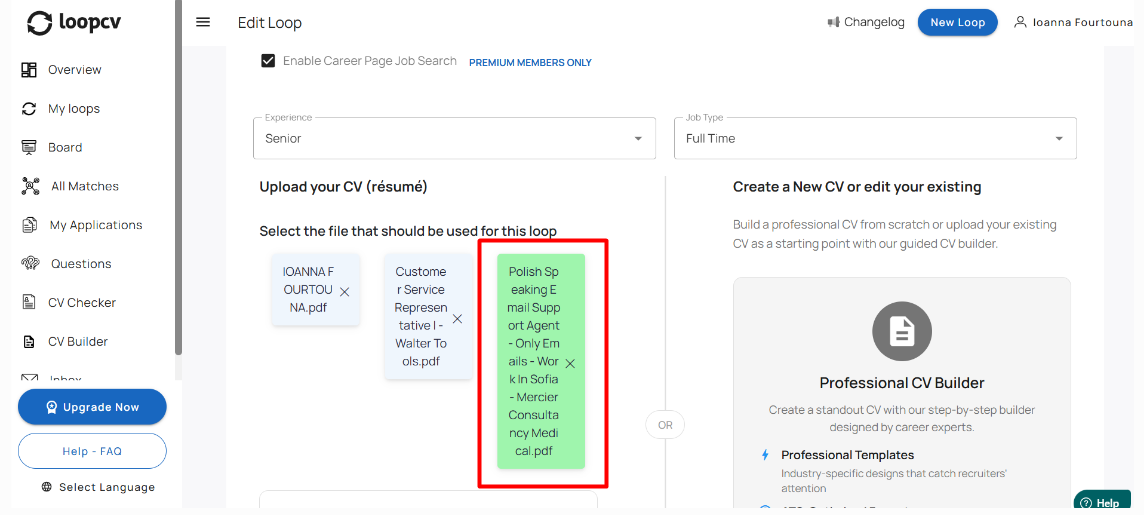
3. Edit the loop and select your newly finalized CV to make it active for that loop.
Important Notes
At the moment, CV Tailoring works only for manual applications.
Support for automated applications and Chrome Extension matches is coming soon.
Feature available exclusively to paid users.
9. Updating Your Email Address & Password
You can update your login email address and password from your account settings. These two actions are managed in different sections.
9.1 Changing Your Email Address
To change the email address associated with your account:
Go to Account Settings
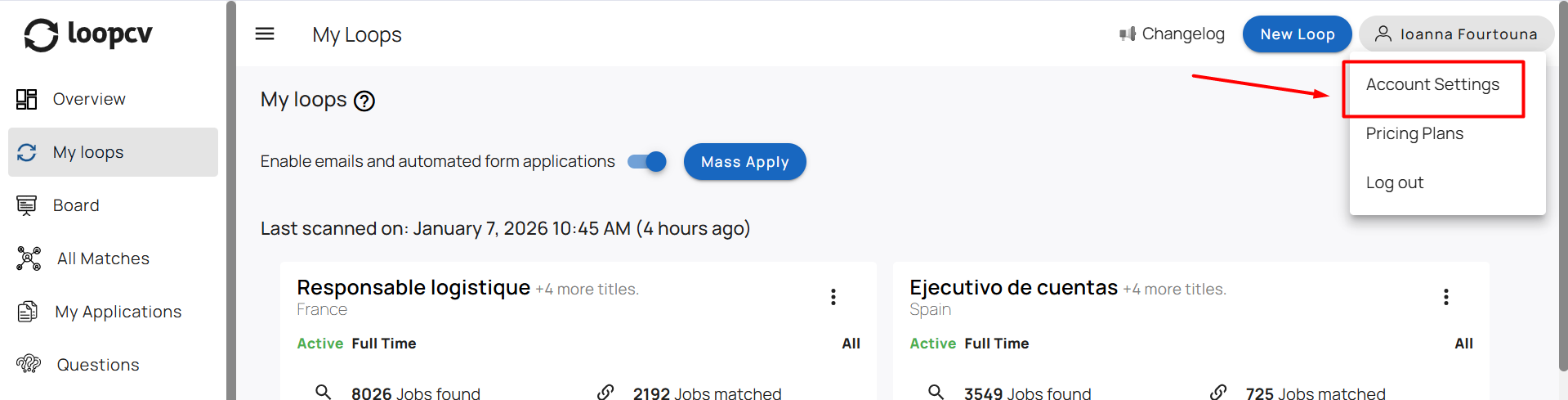
Navigate to the Personal Info section
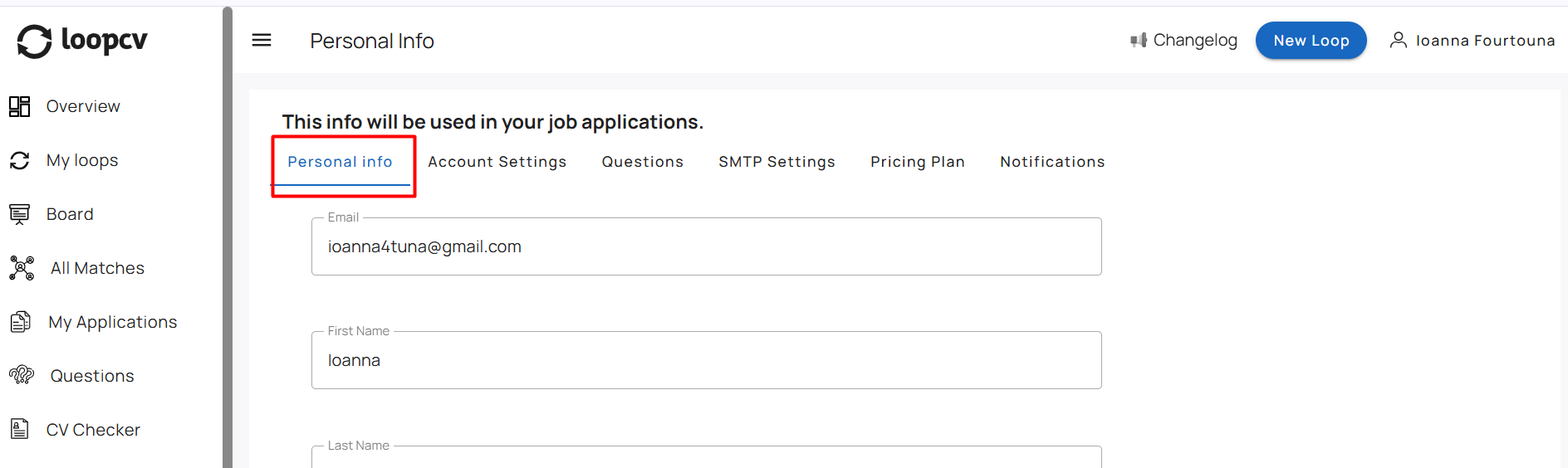
Enter your preferred email address
Click Save to apply the change
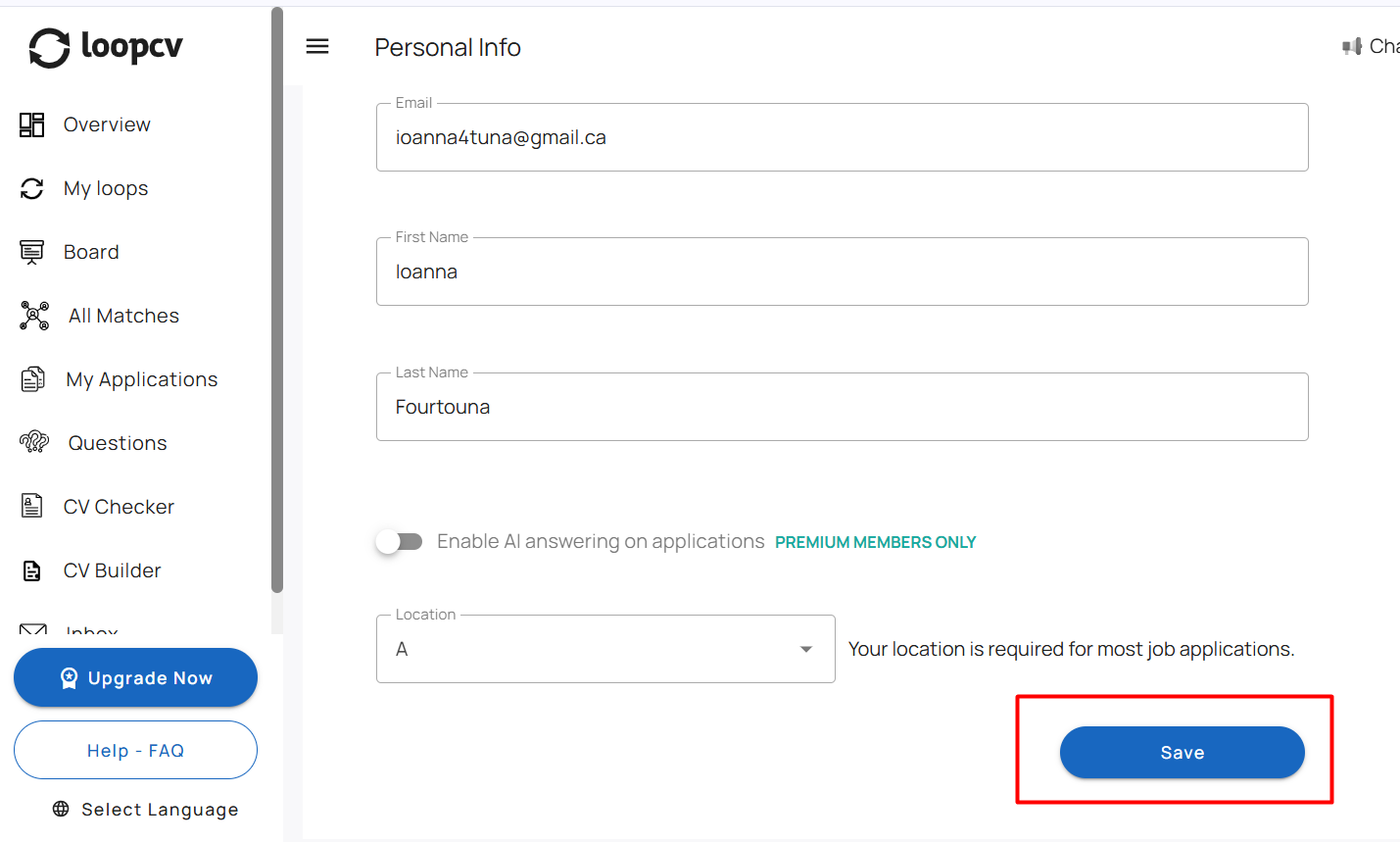
After updating your email address, all future notifications and employer communications will be sent to the new email.
9.2 Changing Your Password
To change your account password:
Go to Account Settings
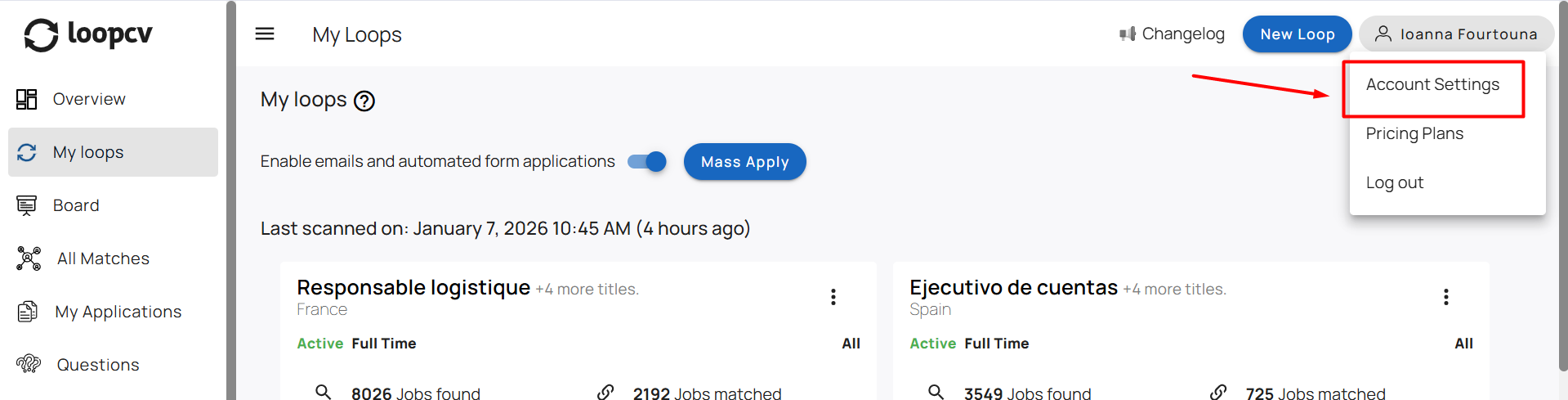
Update your password in the Account Settings section and click the ‘Update Password’ button.
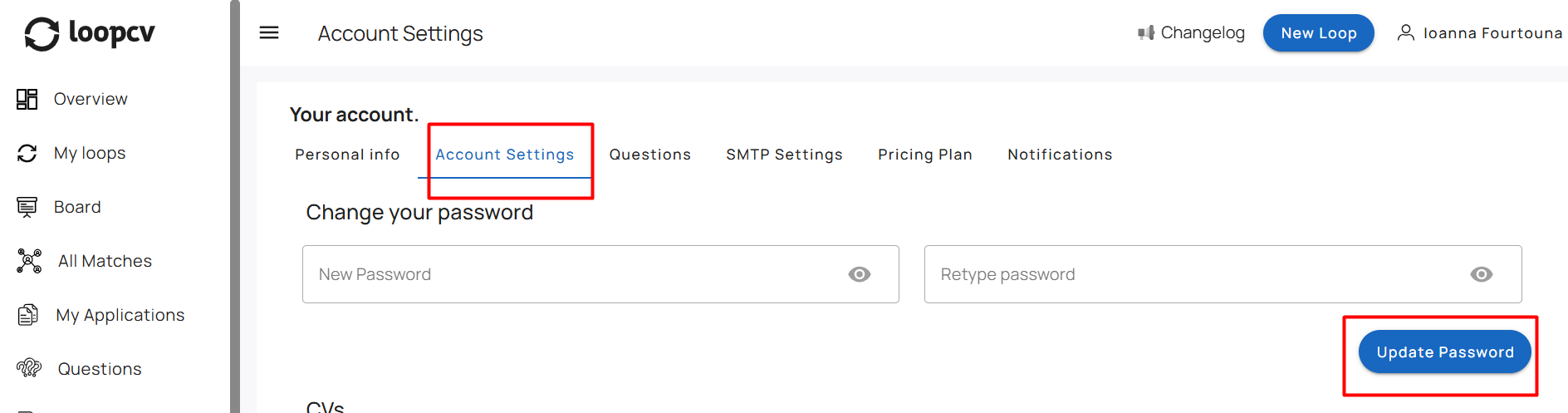
If you forget your password, you can reset it using the “Forgot password” option on the login page.
Important Note
After changing your email address, all future notifications and employer communications will be sent to the new email.
10. Supported Job Boards & Sources
LoopCV searches for jobs across a wide range of global, regional, and specialized job boards, as well as company career pages. Coverage depends on the platform, region, and the application method supported by each listing.
Below is an overview of the main job boards integrated with LoopCV, grouped by region and market focus.
Global Job Market
These platforms offer broad international coverage across multiple industries and regions.
LinkedIn
Covers professional roles worldwide, including Europe, the USA, Asia, Australia, Canada, and more.Indeed
One of the largest global job boards, with strong traffic in Western Europe, the USA, and Asia.Glassdoor
Known for employer reviews and global job postings, with major usage in the USA and the UK.CareerJet
Operates in over 90 countries with localized job searches.SimplyHired
Provides global coverage across a wide range of job types.Adzuna
A global job aggregator with a strong focus on data-driven market insights.Jooble
Operates in more than 60 countries, aggregating job postings worldwide.CareerAddict
Focuses on international job opportunities across various industries.
United States
Platforms focused specifically on the U.S. job market.
USA Jobs
Dedicated to United States federal government positions.Dice
Specializes in technology-focused roles within the United States.
Europe
Job boards with strong presence in European markets.
Reed.co.uk
A major UK job board covering a wide range of industries.CV Library
One of the largest independent job boards in the UK.Xing
Dominant in German-speaking countries such as Germany, Austria, and Switzerland.Workable
An ATS platform with strong European adoption and global listings.InfoJobs
Primarily focused on the Spanish job market.StepStone
A leading European job board, especially strong in Germany and nearby markets.Skywalker
A popular job board focused on the Greek job market.
Asia–Pacific / Oceania
Platforms with strong regional coverage across Asia and Oceania.
Naukri
One of the largest job boards in India, with extensive local coverage.Instahyre
Focuses on tech and startup roles in India.Seek
Dominates the Australian and New Zealand job markets.
Middle East
Platforms specializing in Middle Eastern job markets.
GulfTalent
Focuses on professional roles across the Middle East.NaukriGulf
Covers roles across the UAE, Saudi Arabia, Qatar, Kuwait, Oman, Bahrain, and Egypt.
Creative & Specialized Job Markets (Global)
Platforms focused on niche or creative industries.
Coroflot
Specializes in creative industries such as design and the arts, with global reach.
Important Notes
Application methods may vary by job board and by individual listing.
Some platforms support automatic applications, while others require the Chrome Extension or manual application.
Job board availability and coverage may vary by country and region.
Supported sources may evolve as platforms update their application workflows.
11. Cancelling Your Subscription
You can cancel your subscription directly from your account at any time. No support request is required.
11.1 How to Cancel
To cancel your subscription:
Go to your Profile
Navigate to Pricing Plans

Click Cancel Subscription

Confirm your choice
11.2 When Cancellation Takes Effect
Once you cancel, your subscription is scheduled to end at the conclusion of your current billing period.
Until that date:
you continue to have full access to your plan
your Loops remain active
paid features remain available
After the billing period ends:
your Loops become inactive
automated applications stop
your account switches to the free plan
no further charges are made
Important Notes
Cancelling a subscription does not delete your account
Your data (Loops, matches, CVs) remains saved
If you resubscribe later, your Loops become active again
12. Refund Policy
Refunds are handled in accordance with LoopCV’s official refund policy. Because LoopCV is a usage-based platform, refund eligibility depends on how the account has been used and configured.
12.1 What to Know Before Requesting a Refund
Refunds are not automatic
Each request is reviewed based on the refund policy
Account usage (active Loops, collected matches, submitted applications) may affect eligibility
Certain plans or services may be non-refundable
12.2 Reviewing the Full Policy
For complete details, including eligibility criteria and exclusions, please refer to the official Refund Policy.
13. Delete Account (Basic Looper Only)
Account deletion is available only for users on the Basic Looper plan.
Deleting your account permanently removes your data from LoopCV. If you only want to stop billing, please cancel your subscription instead.
13.1 How to Delete Your Account
To delete your account:
Navigate to Account Settings

Click Delete Account
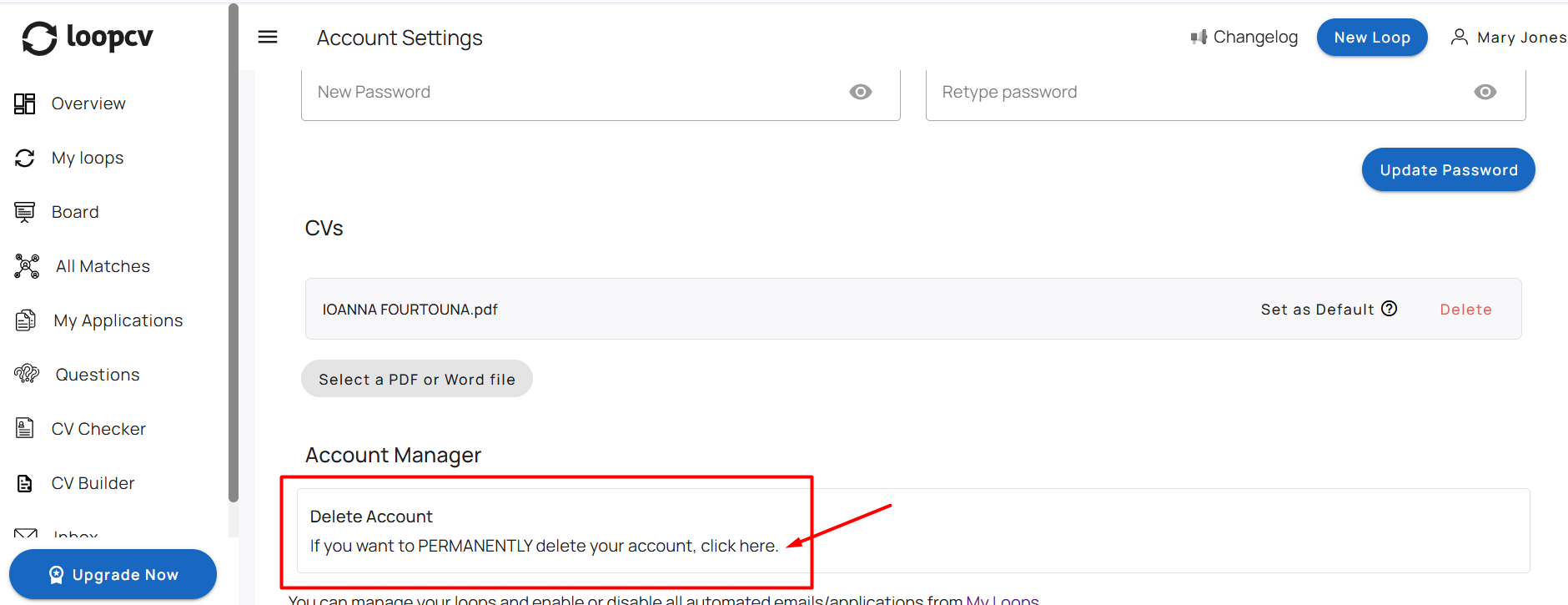
Confirm your choice
Once confirmed, your account and all associated data will be removed.
Important Note
Loop, matches, CVs, and history will be deleted
If you are on a paid plan and wish to delete your account, you must first downgrade to the Basic Looper plan.
14. Understanding Results
LoopCV’s results depend on your Loop configuration, the job platforms being scanned, and current job market conditions.
Because of this, outcomes may vary from one Loop to another and over time.
The sections below explain common result patterns and what they mean.
14.1 Why am I not seeing many matches?
The number of matches depends on:
Job title specificity
Location
Remote mode
Seniority level
Keywords
Excluded keywords
Matching level
If your configuration is very specific (for example, a narrow job title combined with a high match level and multiple required keywords), the number of matches may be limited.
In addition, results may vary depending on overall job market conditions. The number of available postings in your selected industry, location, or seniority level can fluctuate over time.
Broadening one or more filters may increase match volume.
14.2 Why are some matches broader than expected?
Matching is based on contextual similarity between your selected job title and the content of job postings.
The specificity of your job title directly affects the specificity of your results. Broader titles will generate broader matches.
Lower match levels increase volume but may reduce precision.
To refine results, you can adjust:
Keywords
Excluded keywords
Matching level
Work arrangement (on-site, remote, hybrid)
14.3 Why are matches and applications not always the same number?
Not all matches can be applied to automatically.
Applications depend on:
Your automation settings
Platform restrictions
Whether user interaction is required (for example, extension-supported or manual applications)
Whether screening questions have been answered
It is normal for the number of matches to be higher than the number of submitted applications.
14.4 Why does activity sometimes take time?
Loops run automatically and scan job sources periodically.
You do not need to keep your browser open for them to function.
After creating or editing a Loop, allow time for the next scanning cycle before expecting new matches or applications.
15. White-Label Solution
LoopCV offers a white-label version of its platform for organizations that support job seekers at scale.
This service is designed for:
Bootcamps
Professional schools
Universities
Recruitment agencies
Career advisors
Workforce development programs
The white-label solution allows organizations to provide their students or clients with a branded job search automation platform powered by LoopCV’s technology.
Depending on the partnership model, institutions can:
Offer automated job search tools to their cohorts
Provide structured job application workflows
Support CV optimization and application tracking
Monitor engagement and activity
Deliver scalable career support without manual intervention
The platform can be customized to reflect the organization’s branding and structure, allowing it to operate as an integrated part of their career services offering.
Organizations interested in learning more about the white-label solution may contact the LoopCV team for further information.
Was this article helpful?
That’s Great!
Thank you for your feedback
Sorry! We couldn't be helpful
Thank you for your feedback
Feedback sent
We appreciate your effort and will try to fix the article